Posts

Showing posts with the label Master

Party Wise Price List Setting Help guide
Image
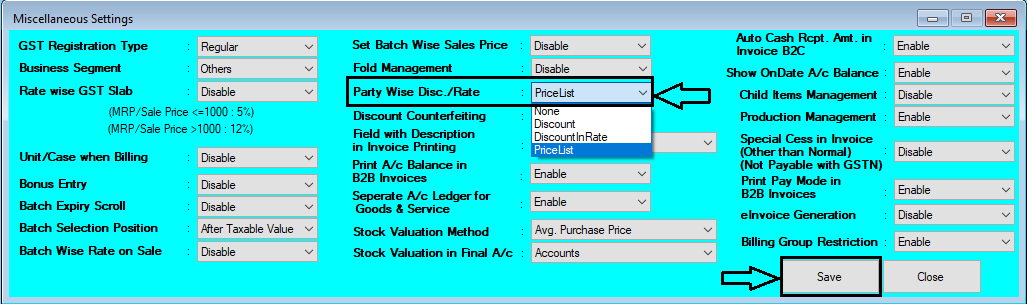
  How to Set Party Wise Price List in Chanakya ERP First of all Go To Tools Menu Open Misc. Settings Go for "Party Wise Discount Rate" Select "Price List" Option Click on "Save"   Logout and Login Software, To Enabled the Changes After Enabling Setting in Misc. Setting Go to "Master" Module Open "Party Wise Price List" Below Image Show the Module will open Like Same . Select Buyer by Pressing "F12" Buyer Details will be Auto filled After Selecting Buyer , Item will be Auto fetched from Item Master Section Your Can Search Item (Item code & Item Name) , from Search Box at Bottom of window Now Set Price of B2B for each Prescribed Item Enter the Price and Click on "Save List" , the Price will be set for that Particular Party on Particular Item Item Master Price Section could be also Fetched By Clicking on "Get Default Price from Master" You can also Refresh the List , By Clicking on "Refresh Li...
Import Account Voucher Help Guide

Image
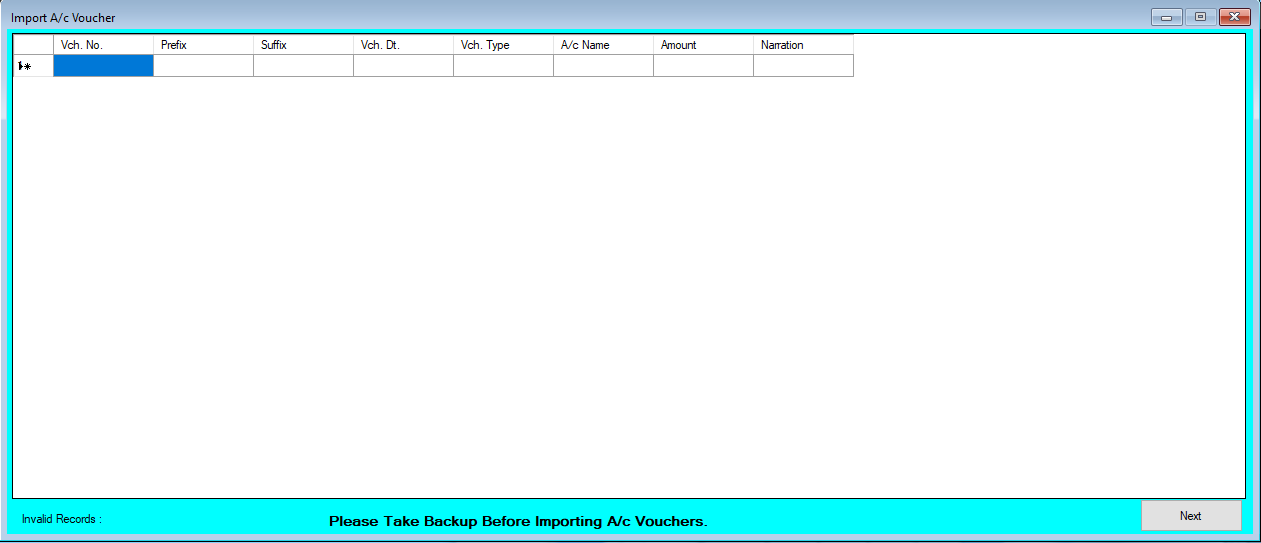
How to Import Account Voucher Through Excel in Chanakya ERP Import Account Voucher Click on  Import A/c Voucher  in  Master Menu  to open Import Account Voucher option (as shown in below image) Data Prepared in  Excel  could be easily transferred through   "Copy and Paste"  option by  Right Click  option on any Column to  Paste  data in  "Bulk"  (as shown in below image) After   Paste  of data through  Excel,  data can be  Viewed  in this window (as shown in below image) Error Records  can be check at  Remarks  column ( while scrolling Right to the screen ), At bottom of the Screen you can find Invalid Records , as shown in below image Note:  Invalid A/c Name, Duplicate Voucher No.,  and Invalid Voucher Type  are common error which occur during import. For this type of error you first Enter  Correct details   (According to Software A/c Mas...

Import Account Master Help Guide

Image
How to Import Account Master with Opening Balance Through Excel in Chanakya ERP Import Account Master Click on  Import A/c Master  in  Master Menu  to open Import Account Master option (as shown in below image) Opening Balance can be Imported through Excel Either it is " Existing Party" or " New Party" , in which Dr amount will be indicated in "(-)" and Cr. Amount will be indicated in "(+)",  as shown in below image Data Prepared in  Excel  could be easily transferred through   "Copy and Paste"  option by  Right Click  option on any Column to  Paste  data in  "Bulk"  (as shown in below image) After   Paste  of data through  Excel,  data can be  Viewed  in this window (as shown in below image) Error Records  can be check at  Remarks  column ( while scrolling Right to the screen ), At bottom of the Screen  you can find Account as shown in below image ...

Import Vehicle Master Help Guide

Image
How to Import Vehicle Master Through Excel in Chanakya ERP   Import Item Master Click on  Import Vehicle Master  in  Master Menu  to open Import Vehicle master option (as shown in below image) Data Prepared in  Excel  could be easily transferred through   "Copy and Paste"  option by  Right Click  option on any Column to  Paste  data in  "Bulk"  (as shown in below image) After   Paste  of data through  Excel,  data can be  Viewed  in this window and  Data analysis  can also be Track at  Bottom  side of window  (as shown in below image) Error Records  can be check at  Remarks  column ( while scrolling Right to the screen ), as shown in below image Note:  Invalid Value in Segment   and  Invalid GST Group  are common error which occur during import. For this type of error you can first  Create  these  Groups ...

Modify Vehicle Master List in Bulk like Excel Sheet Help Guide

Image
How to Modify Vehicle Master List in Chanakya ERP Modify Vehicle List (In Bulk) Click on  Modify Vehicle List  in  Master menu  to open Modify Vehicle list option (as shown in below image) Click  on any  Column/Row  which you want to  Edit  the  Information/Value  (as shown in below image) Every Information/Value is  Editable  with respect to Vehicle Master List. Any  Changes  here can be seen in Vehicle Master Menu and in whole software. Bulk  Vehicle List can be updated in  Single Window Click  on  Save  button. This message will be displayed.(as shown in below image)                                                                           ...

Vehicle Master Help Guide

Image
How to Create/Modify/Delete Vehicle Details in Chanakya ERP Create Vehicle Master Click on Vehicle Master in Master Menu to open Vehicle master option as shown in below image. Enter/select appropriate value in field shown in above image. Description of each field is given below. (fields name marked with * are mandatory field.) Vehicle Segment(*):  Select Vehicle Segment from the list Two Wheeler: For Two Wheeler Section Three Wheeler :  For Three Wheeler Section  Tractors:  For Tractor Section Four Wheeler:  For Four Wheeler Section Six Wheeler:  For Six Wheeler Section Brand (*) :  Select  Brand  for Vehicle Segment. Model Code (*) : Enter Model Code of Vehicle Segment Description (*) :   Description/Details of Vehicle Name Vehicle Type (*)  : Select Vehicle Type According to Vehicle Segment HSN Code:   Enter HSN for the item. (Do not enter anything except HSN) Horse Power : Enter Horse power of Vehic...

Import B2B Sales Return Invoices Help Guide

Image
How to Import B2B Sales Return Invoices Through Excel in Chanakya ERP Import B2B Sales Return Invoices  Click on  Import B2B Sales Return Invoices  in  Master Menu  to open Import B2B Sales Return Invoices option (as shown in below image) Invoices Maintained in  Excel  could be easily transferred through   "Copy and Paste"  option by  Right Click  on any Column to Paste data in  "Bulk"  (as shown in below image) After   Paste  of Invoices through  Excel,  data can be  Viewed  as shown in below image Error Remarks  can be viewed at  Remarks  column ( while scrolling Right to the screen ) and at the left bottom of the window, as shown in below image Note:   Invalid CN No., Invalid CN Date,Invalid Invalid Ref. Invoice Dt., Etc..    Error remarks which occur during Import of B2B Sales Return Invoices . For this type of Error Remarks you have to   Prepare Ex...

Doctor Master Help Guide

Image
How to Create/Modify/Deactive Doctors Details in Chanakya ERP For Business Segment "Pharma/Medical" Section Note: In Tools Section open  Misc. Settings  there Select Business Segment as "Pharma" and Save it and Restart the Software (Logout & Login One Time) Create/Add New Doctors Click on  Doctor Master  in  Master  Menu to open Doctor Master option as shown in below image. Enter/select  appropriate  Information/Value  in field shown in above image. Description of each field is given below. Doctor Code   (*) : Enter an  unique code  for Doctor which you want to create like 1,2,3 or short form of Doctor Name etc. Doctor Name (*) : Enter the name of Doctor as their registered name. Address  : Enter address. City  :  Enter city name . Pin Code  : Enter 6 digit pin code. District  : Enter district name. State   (*) : Select correct state name.  Phone No.  : Enter Phone No. Mobile No. ...

Godown/Warehouse Master Help Guide

Image
How to Create/Modify/Delete Godown /Warehouse in Chanakya ERP Create Godown Click on Godown Master  in  Master Menu  to open Godown/Warehouse Master option (as shown in below image). Enter/select  appropriate  Information/Value  in field shown in above image. Description of each field is given below Godown Name (*) : Enter the Name of Godown/Warehouse Address : Enter Address Place : Enter Place Pin code : Enter Pin code  Phone Number :  Enter Valid Phone Number Status (*)  : Select  "Active"  as status for create new Godown. Now Click on  "Add"  Button to create this Godown. When Godown will successfully  created/Added  then a message will appear like below image. Click on  OK  button to View the added Godown Modify / Deactivate (Delete) Godown Click on  Godown Master  in  Master  Menu to open Godown master option shown below. Double click  on Godown List which you want to...

Download Master (Only For Medicine) From Chanakya Server Help Guide

Image
How to Download Master Data (Medicine) Through Chanakya Server in Chanakya ERP Download Master Data (Only for Medicine) Click on  Download Master from Chanakya  in  Master Menu  to open Download Master from Chanakya option (as shown in below image) Select Medicine Brand according to your Distributorship/Retailer or Business, as shown in below image Click on Next Button to move to Second Step , while Moving to next Step the selected Brand Medicine will take Few Seconds to Download , as shown in below image View the Downloaded Medicine of Selected Brand with MRP and Units, as shown in below image. Click on Save button to save the data in Item Master , as shown in below image  NOTE:- This feature is only available for Medicine C&F, Distributor, Retailer, ETC. For More Query/Support, Feel free to Generate Ticket or Call us on +91 8447740155 Thank You !

Import Item Opening Help Guide

Image
How to Import Item Opening Through Excel in Chanakya ERP Import Item Opening  Click on  Import Item Opening  in  Master Menu  to open Import Item Opening option (as shown in below image) Data Prepared in  Excel  could be easily transferred through   "Copy and Paste"  option by  Right Click  option on any Column to Paste data in  "Bulk"  (as shown in below image) After   Paste  of data through  Excel,  data can be  Viewed  in this window and  Data analysis  can also be Track at  Bottom  side of window  (as shown in below image) Opening Stock value can  be Updated according to Item Master Price i.e., set during Item Master Entry, simply view  Right Corner of the open window to Click the Check-Box (as shown in below image) Error Records  can be check at  Remarks  column ( while scrolling Right to the screen ), as shown in below image No...