Posts

Showing posts with the label Import

Import Account Voucher Help Guide
Image
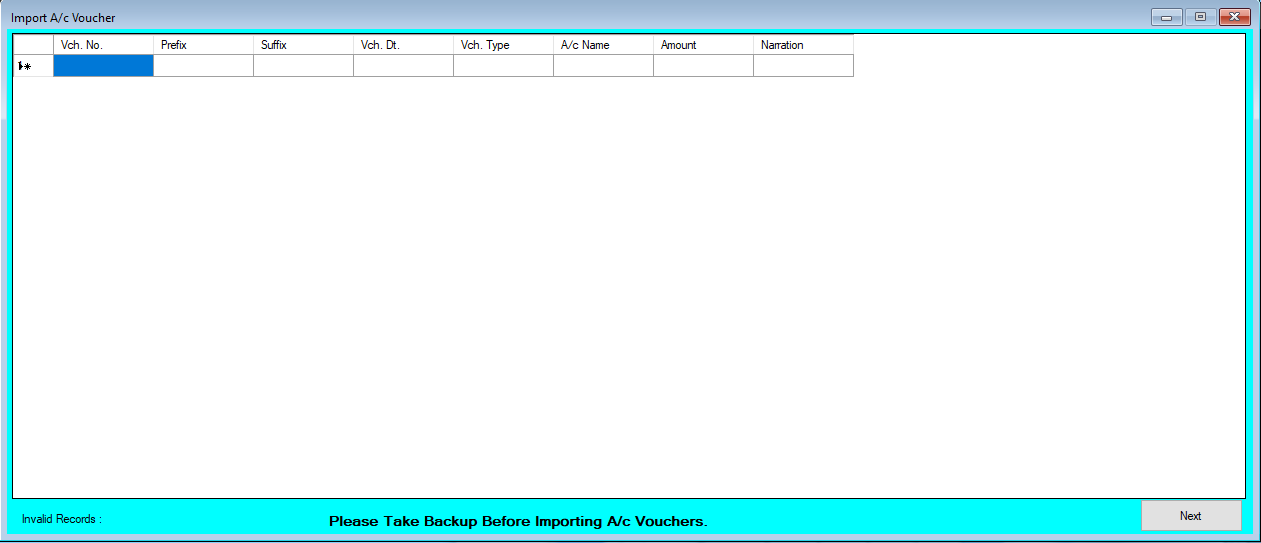
How to Import Account Voucher Through Excel in Chanakya ERP Import Account Voucher Click on  Import A/c Voucher  in  Master Menu  to open Import Account Voucher option (as shown in below image) Data Prepared in  Excel  could be easily transferred through   "Copy and Paste"  option by  Right Click  option on any Column to  Paste  data in  "Bulk"  (as shown in below image) After   Paste  of data through  Excel,  data can be  Viewed  in this window (as shown in below image) Error Records  can be check at  Remarks  column ( while scrolling Right to the screen ), At bottom of the Screen you can find Invalid Records , as shown in below image Note:  Invalid A/c Name, Duplicate Voucher No.,  and Invalid Voucher Type  are common error which occur during import. For this type of error you first Enter  Correct details   (According to Software A/c Mas...

Import Account Master Help Guide

Image
How to Import Account Master with Opening Balance Through Excel in Chanakya ERP Import Account Master Click on  Import A/c Master  in  Master Menu  to open Import Account Master option (as shown in below image) Opening Balance can be Imported through Excel Either it is " Existing Party" or " New Party" , in which Dr amount will be indicated in "(-)" and Cr. Amount will be indicated in "(+)",  as shown in below image Data Prepared in  Excel  could be easily transferred through   "Copy and Paste"  option by  Right Click  option on any Column to  Paste  data in  "Bulk"  (as shown in below image) After   Paste  of data through  Excel,  data can be  Viewed  in this window (as shown in below image) Error Records  can be check at  Remarks  column ( while scrolling Right to the screen ), At bottom of the Screen  you can find Account as shown in below image ...

Import B2C (Retail Bill) Invoices Vehicle Help Guide

Image
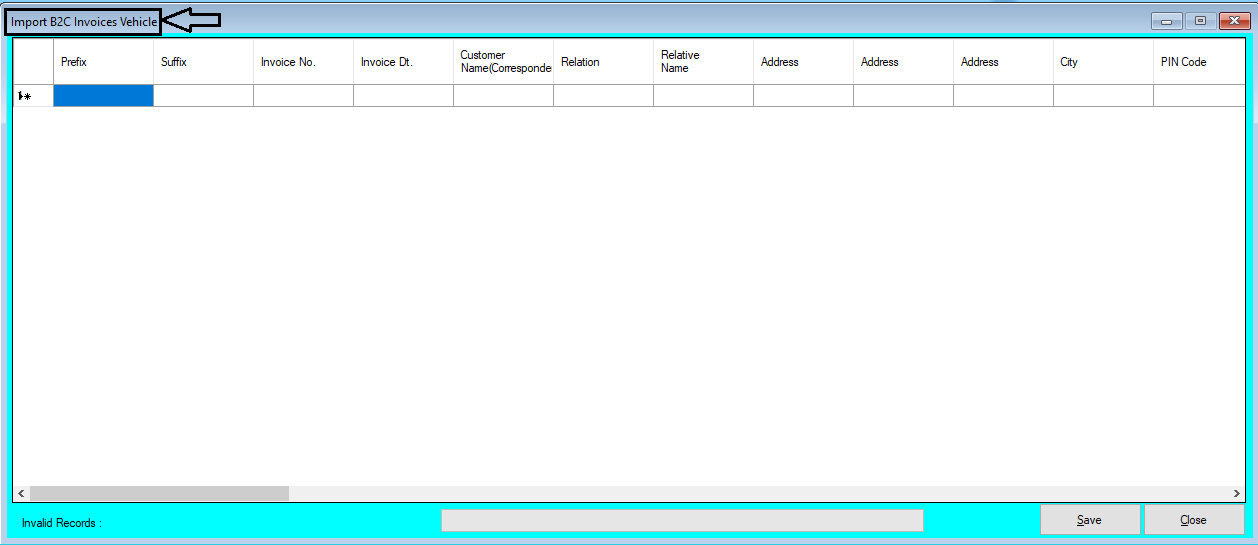
How to Import B2C (Retail Bill) Invoices Vehicle Through Excel in Chanakya ERP Import B2C (Retail Bill) Invoices Vehicle Click on  Import B2C Invoices Vehicle   in  Master Menu  to open Import B2C Invoices Vehicle option (as shown in below image) Invoices Maintained in  Excel  could be easily transferred through   "Copy and Paste"  option by  Right Click  on any Column to Paste data in  "Bulk"  (as shown in below image) After   Paste  of Invoices through  Excel,  data can be  Viewed  as shown in below image Error Remarks  can be viewed at  Remarks  column ( while scrolling Right to the screen ) and at the left bottom of the window, as shown in below image Note:   Invalid Invoice No.,Invalid Frame No., Etc..   error remarks which Could occur during Import of B2C Invoices Vehicle. For this type of error remarks you have to First  Create  all the Group...

Import Vehicle Opening Help Guide

Image
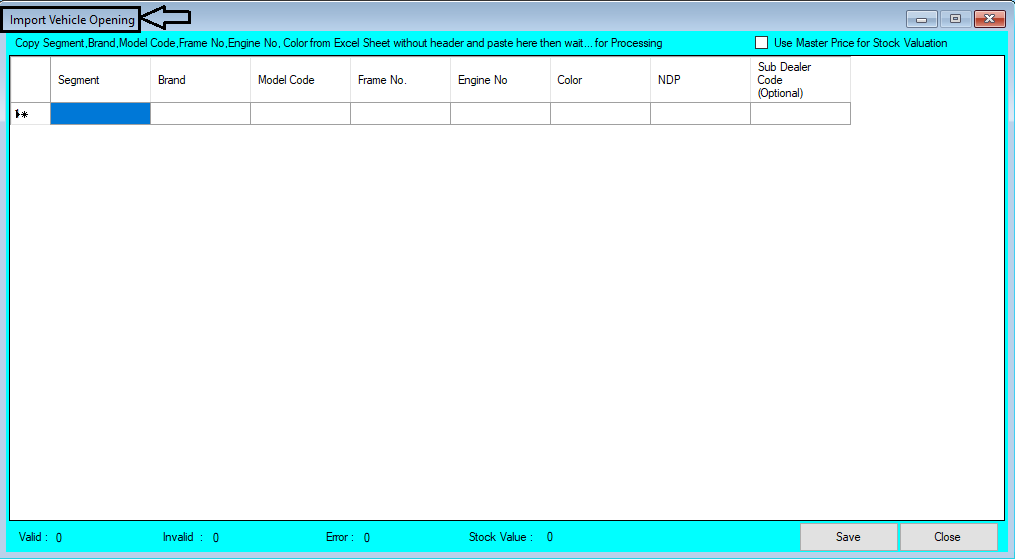
How to Import Vehicle Opening Through Excel in Chanakya ERP   Import Vehicle Opening  Click on  Import Vehicle Opening  in  Master Menu  to open Import Vehicle Opening option (as shown in below image) Data Prepared in  Excel  could be easily transferred through   "Copy and Paste"  option by  Right Click  option on any Column to Paste data in  "Bulk"  (as shown in below image) After   Paste  of data through  Excel,  data can be  Viewed  in this window and  Data analysis  can also be Track at  Bottom  side of window  (as shown in below image) Opening Stock value can  be Updated according to Vehicle Master Price i.e., set during Vehicle Master Entry, simply view   Right Corner  of the open window to  Click  the  Check-Box  (as shown in below image) Error Records  can be check at  Remarks ...

Import Vehicle Master Help Guide

Image
How to Import Vehicle Master Through Excel in Chanakya ERP   Import Item Master Click on  Import Vehicle Master  in  Master Menu  to open Import Vehicle master option (as shown in below image) Data Prepared in  Excel  could be easily transferred through   "Copy and Paste"  option by  Right Click  option on any Column to  Paste  data in  "Bulk"  (as shown in below image) After   Paste  of data through  Excel,  data can be  Viewed  in this window and  Data analysis  can also be Track at  Bottom  side of window  (as shown in below image) Error Records  can be check at  Remarks  column ( while scrolling Right to the screen ), as shown in below image Note:  Invalid Value in Segment   and  Invalid GST Group  are common error which occur during import. For this type of error you can first  Create  these  Groups ...