Posts

Showing posts with the label Billing

Chanakya ERP Update Release 1.1.4.0
Image
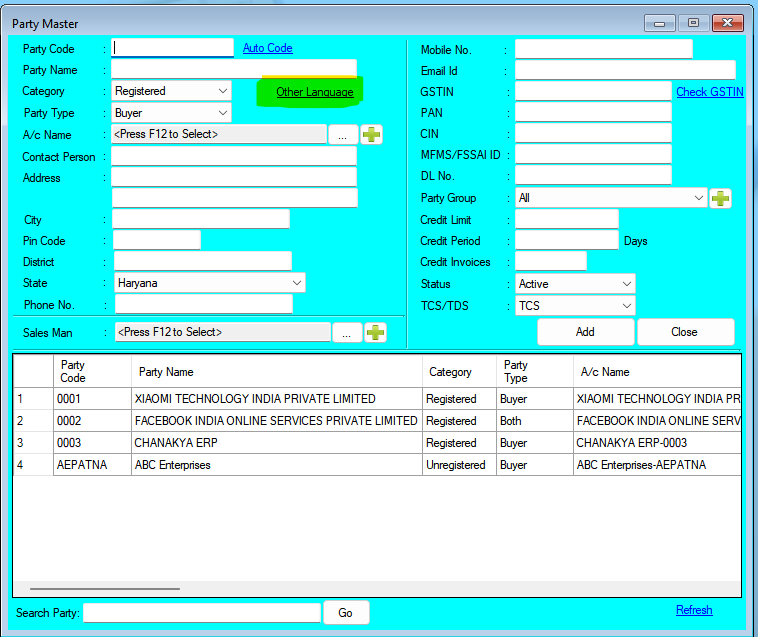
Updates Released in New Version of Chanakya  ERP (1.1.4.0) Highlights Now Party (Buyer) Details on Invoice can be printed in your local language using Unicode Features in Chanakya ERP. How to use this feature. Enter Party Details in your local language like shown in below images.   After Updating Details in Party Master. Chanakya ERP will automatically print party details in Invoice in your local language as shown in below image. And Many More Minor Updates and Enhancement   For More Query/Support, Call us on +91 8447740155 Thank You !

User Wise Billing Group Mapping Help Guide

Image
How To Manage User Wise Billing Group Mapping in Chanakya ERP Go to Tools Menu You will Find an option of "User wise Billing Group Mapping" Open "User Wise Billing Group Mapping" Select " User" Select "Billing Group" Group which you want to allow Permission to Selected user to Work in. Click on "Add" Button to add the Mapping  If You want to Delete any Save Record, then Simply Press Delete Key to Delete that Particular Record For More Query/Support, Feel free to Generate Ticket or Call us on +91 8447740155 Thank you !

Invoice B2C Help Guide

Image
How to Create/Modify/Cancel Invoice B2B in Chanakya ERP Create Invoice B2C Bill Click  on  Inventory Menu Click  on  Invoice B2C A new window will popped up  Select Billing Groups (If Multiple Counter is Maintained in Business)  Invoice Number  will be Created  (Automatically & Manual Setting in  Document Number Settings  option) Enter  Your  Invoice Date  -  (Current Date) Invoice Type : Inter State Invoice  for  Out of State  ( IGST will be Applicable ) and  Intra State Invoice  for  Same State  ( CGST & SGST will be Applicable ) Salesman: Press "F12" to Select Salesman from Salesman List In Reverse Charge Option   Choose "No"👇👇👇 Note :-Normally seller collects GST from Buyer and Pays to Government. However, In some cases, Buyer Pay GST Directly to Government, This is Called Reverse Charge in GST  In Normal Billing, Reverse Charge Should Be "No" Godown  ...

E-Invoice Creation Help Guide

Image
How To Create/Print E-Invoice in Chanakya ERP without Login To Government Portal Some Point to be Remembered While Creating E-Invoice Enable E-Invoice Features From Misc. Setting in Tool Menu HSN Number of Item Should Be Correctly Entered While Creating Item Master GST% Applicable To Particular Item Should be Properly Applied on Each and Every Product GST Number of Both Buyers and Suppliers Should be Correct Create E-Invoice E-Invoice  will be  created  while  Invoicing B2B Sales Create B2B Invoice ( As Usual you Create In Software ) Do Not Mention Overall Discount , because it will Not provide you Permission to Generate E-Invoice , You have to Provide Item Wise Discount to Generate E-Invoice   After Creating Invoices , when you Click on "Save" , "Print" or "Preview" Option, A New Pop-Up Window will Open of "Generate E-Invoice" , as shown in below image Select "E-Generate" on "Generate E-Invoice" and then Click on ...