Posts

Showing posts with the label Invoice

Serial/IMEI/Barcode Number Generation Help Guide
Image
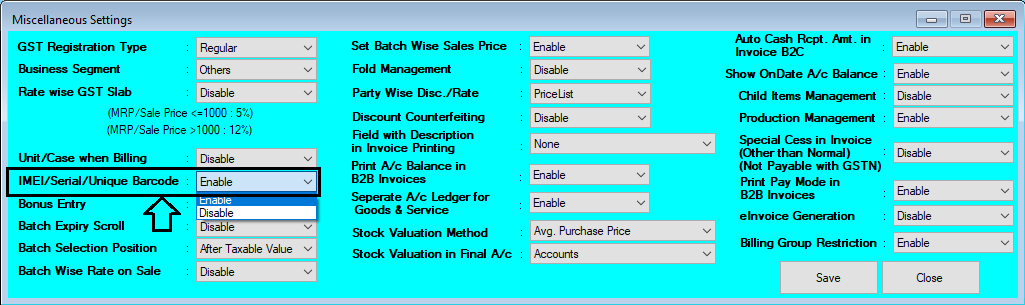
How to Generate Serial/IMEI/Barcode Number in Chanakya ERP First You have To Enable the Settings from "Tool Menu" Go to "Misc. Settings" Go for "IMEI/Serial/Unique Barcode" Option  Select "Enable"   Click on Save Button And Re-login your Software to Enable those Settings Go to "Inventory" Menu Open "Purchase Window" Select the Item for Purchasing and Enter the Quantity Press "F12" on Quantity Column to Open "Serial No. Entry" Column as Shown Below in Image Select the Segment You Want to Generate (Serial/IMEI/Barcode) You can Find Two way to Generate Serial/IMEI/Barcode Number Manual Entry defines you to Enter Manual Barcode/Serial/IMEI Number in Below Column Automatic Generation will Generate Barcode/Serial/IMEI number Automatic , for Each Quantity you are Purchasing By Clicking on Automatic Generation , Barcode/Serial/IMEI Number will be Auto Generated   Barcode/Serial/IMEI Will be arranged in S...

Chanakya ERP Update Release 1.1.1.7

Image
  Chanakya ERP Is Now Enabled with Whatsapp Features Now Send Your Invoices (B2B/B2C) Through Whatsapp, PDF Format will be Directly Sent on Customers Whatsapp Number, In a Single Click Send Ledger, All Accounting Vouchers and Other Module (With Preview Option) And Many Minor Enhancements ... For More Query/Support, Call us on +91 8447740155 Thank You !

Invoice B2C Vehicle Master Help Guide

Image
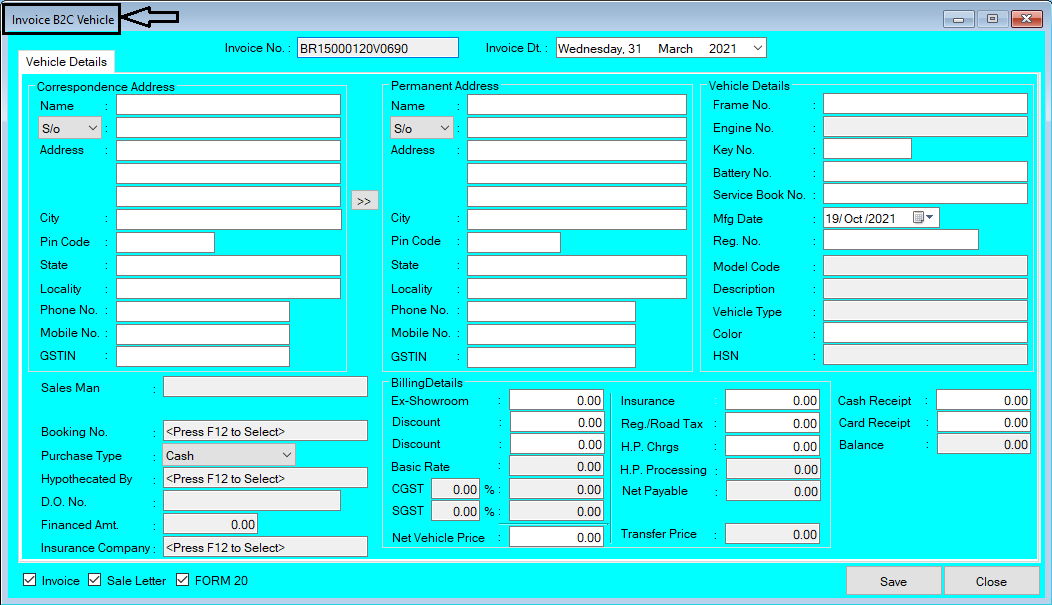
How To Create/Modify/Cancel Invoice B2C Vehicle in Chanakya ERP Create Invoice B2C Vehicle Bill Click  on  Inventory Vehicle Menu Click  on  Invoice B2C Vehicle A new window will popped up  Correspondence Address :- Fill Complete Address of Customer with Proper Mobile/Phone Number   Permanent Address:- If Permanent Address is Same as Correspondence Address then Simply Click on ">>" Key to fetch the details Vehicle Details:- In Vehicle details, You will Find the information of Vehicle  Frame Number:- Press "F12" to Select Frame Number of vehicle i.e., to be sold Engine Number:- Engine Number will be Fetched with Simply Selecting Frame Number. Key Number:- Key Number will be Mentioned (If Needed) Battery Number:- Enter the Battery Number (If Needed) Service Book Number:- Enter Service Book Number (if Required) Mfg. Date:- Enter the Mfg. Date Reg. No.:- Enter Reg. No. Model Code:- Model code will be fetched with frame Number Description:...

Import B2C (Retail Bill) Invoices Vehicle Help Guide

Image
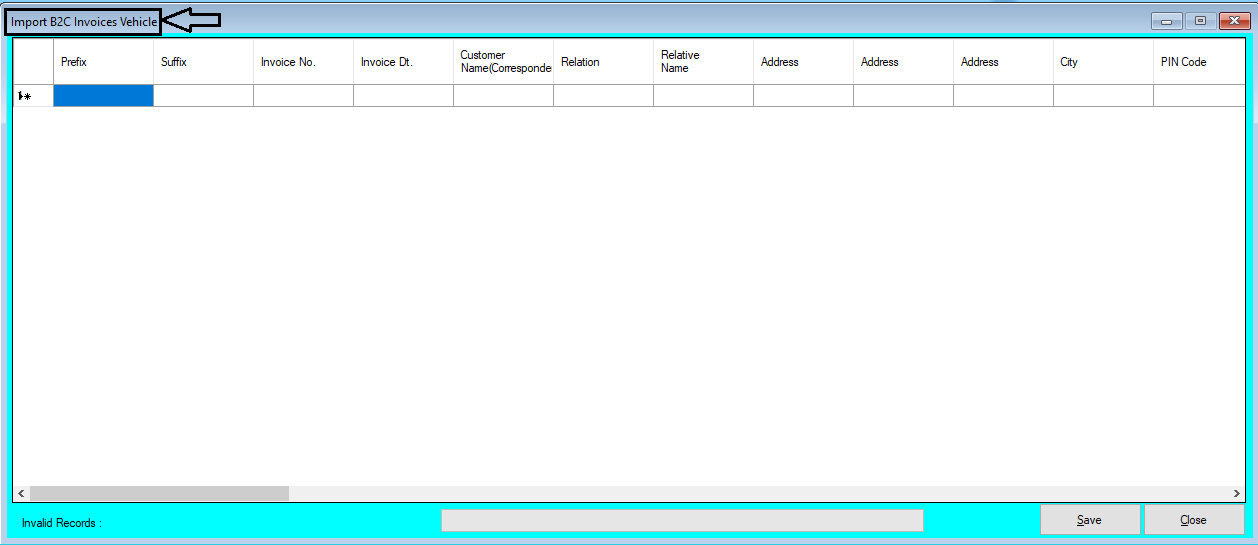
How to Import B2C (Retail Bill) Invoices Vehicle Through Excel in Chanakya ERP Import B2C (Retail Bill) Invoices Vehicle Click on  Import B2C Invoices Vehicle   in  Master Menu  to open Import B2C Invoices Vehicle option (as shown in below image) Invoices Maintained in  Excel  could be easily transferred through   "Copy and Paste"  option by  Right Click  on any Column to Paste data in  "Bulk"  (as shown in below image) After   Paste  of Invoices through  Excel,  data can be  Viewed  as shown in below image Error Remarks  can be viewed at  Remarks  column ( while scrolling Right to the screen ) and at the left bottom of the window, as shown in below image Note:   Invalid Invoice No.,Invalid Frame No., Etc..   error remarks which Could occur during Import of B2C Invoices Vehicle. For this type of error remarks you have to First  Create  all the Group...

Performa Invoice (B2B) Help Guide

Image
How to Create/Modify/Cancel Performa Invoice (B2B) in Chanakya ERP Create Performa Invoice (B2B) Click on  Performa Invoice (B2B)  in  Inventory Menu  to Open Performa Invoice (B2B) option (as shown in below image) Billing Groups: Multiple Billing Group can be selected by Clicking on Drop-Down Menu Invoice Number: Manually and Automatically both can be Managed in Document Number Settings Invoice Date: Invoicing Date is to be Selected , Date at which Invoice is being Generated Invoice Type: It will depend upon Address of Buyer (Inter-State Invoice for outside State Buyers and Intra-State Invoice for within State Buyers) Reverse Charge: By Default "No" will be Selected, You can Select "Yes" by Clicking on Drop-Down Menu A/c Balance: Previous A/c Balance will be displayed here of Particular Buyer's Payment Mode: "Cash" Mode for Cash Payment and "Credit" Mode for Later Payment. When Payment will be done by Buyer then their "P...

Invoice B2B Help Guide

Image
How to Create/Modify/Cancel B2B Invoice in Chanakya ERP Create Invoice B2B Bill Click  on  Inventory Menu Click  on  Invoice B2B A new window will popped up Select  Billing Groups   (If Multiple Counter is Maintained in Business)  Invoice Number  will be Created  (Automatically & Manual Setting in  Document Number Settings  option) Note:  If Yow Want to create Manual Invoice, Then Press "F2" on Invoice Number to create Manual invoice Enter  Your  Invoice Date  -  (Current Date) Invoice Type : Inter State Invoice  for  Out of State  ( IGST will be Applicable ) and  Intra State Invoice  for  Same State  ( CGST & SGST will be Applicable ) A/c Balance : Previous A/c Balance of Particular Buyer will be Fetched (Cr. & Dr.) Payment Mode : "Cash" & "Credit" Two Modes are available for Buyers . Salesman: Press "F12"  to  Select  Salesman   from ...