Posts

Showing posts with the label Misc. Settings

Misc. Settings Help Guide

Image
How to Configure Extra/Miscellaneous Settings in Chanakya ERP Miscellaneous settings Click on Miscellaneous Settings  in Tools Menu  to open Miscellaneous Settings (as shown in below image) In Miscellaneous settings you will get various options according to your Firm/Company . You can Enable/Disable according to your need while using software for first time. Note: Whenever you are making Some Changes in Misc. Setting then You have To First Restart your Software (Logout and Login Again), then only Setting made will be Visible to Software GST Registration Type :- Firm/company can select GSTIN type  Regular :- If Registered in Regular type, Select Regular Composite :- If Registered in Composite type, Select composite. Business Segment: - Select Business Segment  Others :- Select other segment for all Business Type ( Except Pharma) Pharma :- Select Pharma for Medicine Businesses  Restaurant:- Select Restaurant for Restaurant Business ( KOT & Table w...
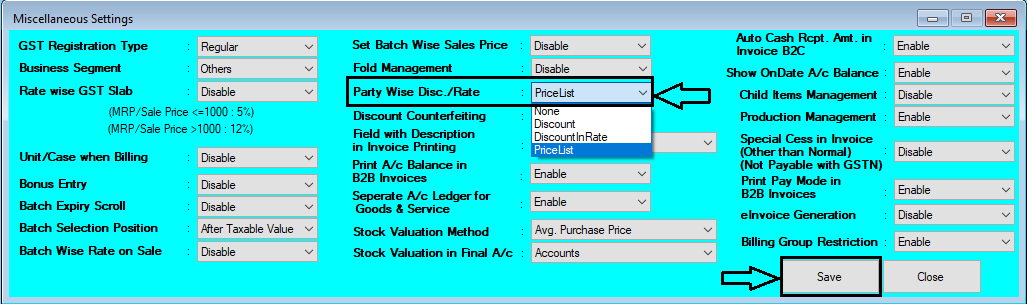
Party Wise Price List Setting Help guide

Image
  How to Set Party Wise Price List in Chanakya ERP First of all Go To Tools Menu Open Misc. Settings Go for "Party Wise Discount Rate" Select "Price List" Option Click on "Save"   Logout and Login Software, To Enabled the Changes After Enabling Setting in Misc. Setting Go to "Master" Module Open "Party Wise Price List" Below Image Show the Module will open Like Same . Select Buyer by Pressing "F12" Buyer Details will be Auto filled After Selecting Buyer , Item will be Auto fetched from Item Master Section Your Can Search Item (Item code & Item Name) , from Search Box at Bottom of window Now Set Price of B2B for each Prescribed Item Enter the Price and Click on "Save List" , the Price will be set for that Particular Party on Particular Item Item Master Price Section could be also Fetched By Clicking on "Get Default Price from Master" You can also Refresh the List , By Clicking on "Refresh Li...