Posts

Showing posts with the label Stock Transfer

Stock Transfer (Godown) List Help Guide

Image
How to Check Report of Stock Transfer (Godown) List in Chanakya ERP Stock Transfer ( Godown) List Click on  Stock Transfer (Godown)  List  in  Reports Menu  to open Stock Transfer (Godown) List option (as shown in below image) You can find Two Filter option i.e., Challan Summary & Item Summary Wise which can be sorted according to Period of Date , as shown in below image By Filter of Challan Summary , with Selection of Period of Date and Click on Show button as shown in below image By  Filter  of  Item Summary , with  Selection  of  Period of Date  and  Click  on  Show  button as shown in below image Stock Transfer (Godown) List  (Challan Summary and Item Summary Wise)  can be  Exported  in  Excel  and  Text format  and send an   Email Attachment ,   For more details of  Export  of file please go through our  Export Reports  B...
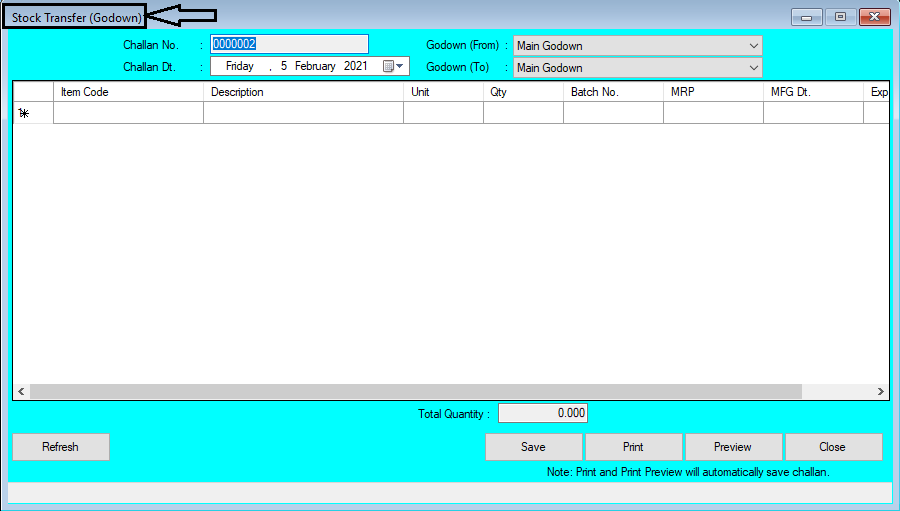
Stock Transfer (Godown) Help Guide

Image
How to Create/Modify/Delete Stock Transfer (Godown) in Chanakya ERP Create Stock Transfer(Godown) Click on  Stock Transfer (Godown)   in  Inventory Menu  to open Stock Transfer (Godown) option (as shown in below image). Challan Number  will be Created  (Automatically & Manual Setting in  Document Number Settings  option) , then  Select Challan Date  Select Godown (From) and Godown (To) from Drop-Down menu, Both can't be same in any Case. On  Item Code   Enter Item First Digit  or  Enter (%)  and  Click  on  Enter  Button to  Open Select Item  Window in which you can Select Item, as shown in below image Double Click /  Select   Particular Item which is to be  Transferred   in other Godown from Main Godown (Both Godown will be different)  the Item Which Contain ( Itemcode ,  Description ,  Units ,  Quantity ,  MRP ,...

Stock Transfer Help Guide

Image
How to Create/Modify/Delete Stock Transfer in Chanakya ERP Create Stock Transfer Click on  Stock Transfer   in  Inventory Menu  to open Stock Transfer option (as shown in below image). If You have  Created Multiple  Billing Groups  then  Select Billing Groups  and  Challan Number  will be Created  (Automatically & Manual Setting in  Document Number Settings  option) , then  Select Challan Date  as shown in below image Press " F12"  Key to Open  Branch   List  or  Press  on  Three Dot   (...)  to view the Branch  List  or Simply  Click  on  (+)   Button  to open  Party Master,  as shown in below image Click  on  (+)  Button to  Open  Party Master , where you can  Add  your  Branch details  by Selecting  Party Type  as  "Branch"  as shown in be...

Stock Transfer In Help Guide

Image
How to Create/Modify/Delete Stock Transfer IN in Chanakya ERP Create Stock Transfer In Click on  Stock Transfer In  in  Inventory Menu  to open Stock Transfer In option (as shown in below image). Entry Number  will be Created  (Automatically or  Manual Setting in  Document Number Settings  option) , then  Select Entry Date, Enter  Stock Transfer (ST. No.) Number and Stock Transfer Date (ST Dt.)  as shown in below image Press " F12"  Key to  Branch   List  or Press  on  Three Dot   (...)  to view the Branch  List  or Simply Click on (+) Button to open Party Master,  as shown in below image Click on (+) Button to Open Party Master Creation for Branch , where you can Add your Branch details by Selecting Party Type as "Branch" as shown in below image Select Branch details from Branch List or Double Click on Branch Name to Select Particular Branch From which Stoc...