Posts

Showing posts with the label InvoiceB2B

Chanakya ERP Update Release 1.1.4.0
Image
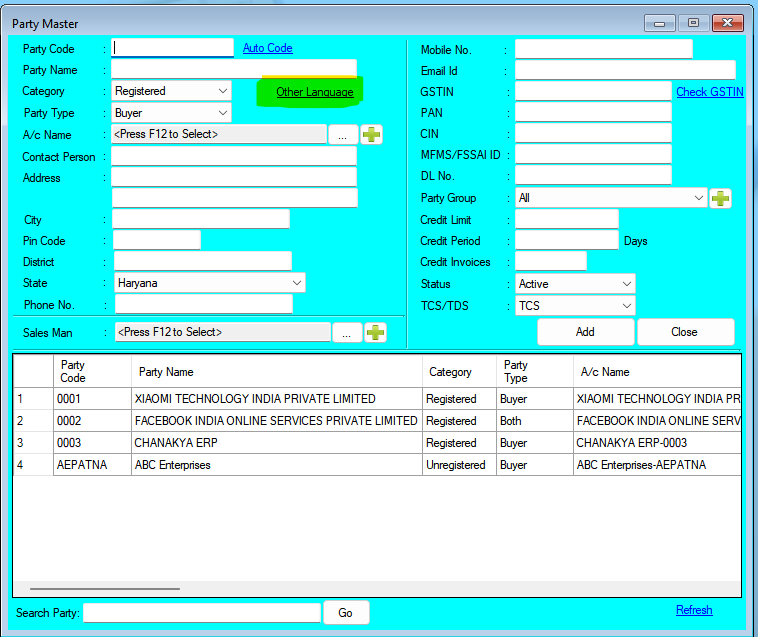
Updates Released in New Version of Chanakya  ERP (1.1.4.0) Highlights Now Party (Buyer) Details on Invoice can be printed in your local language using Unicode Features in Chanakya ERP. How to use this feature. Enter Party Details in your local language like shown in below images.   After Updating Details in Party Master. Chanakya ERP will automatically print party details in Invoice in your local language as shown in below image. And Many More Minor Updates and Enhancement   For More Query/Support, Call us on +91 8447740155 Thank You !

Chanakya ERP Update Release 1.1.3.9

Image
  Updates Released in New Version of Chanakya  ERP Highlights TCS on Sales implementation at the time or Invoice or Receipt (On User's Choice) Two Extra Column Added in Quotation for Vehicle TCS on Sales implementation at the time or Invoice or Receipt (On User's Choice) Who is required to collect TCS on sale of goods?  The seller (Whose ATO is above 10Cr.) of the goods who receives any amount as consideration for the sale of any goods of the value exceeding INR 50 Lakhs  is required to collect TCS on the sale of goods under section 206C(1H) of the Income Tax Act from the buyer. How to Activate and Implement TCS On Sales of Goods Activate TCS through Misc. Settings Using Tools Menu as shown in below image. (Choose Invoice, if you want to implement TCS during invoice and Choose Receipt, if you want to implement TCS after receipt.) After Activation, Set TCS Percent through Applicable TCS Settings Using Tools Menu as shown in below image. If you have configured TCS on I...

Party Wise Price List Setting Help guide

Image
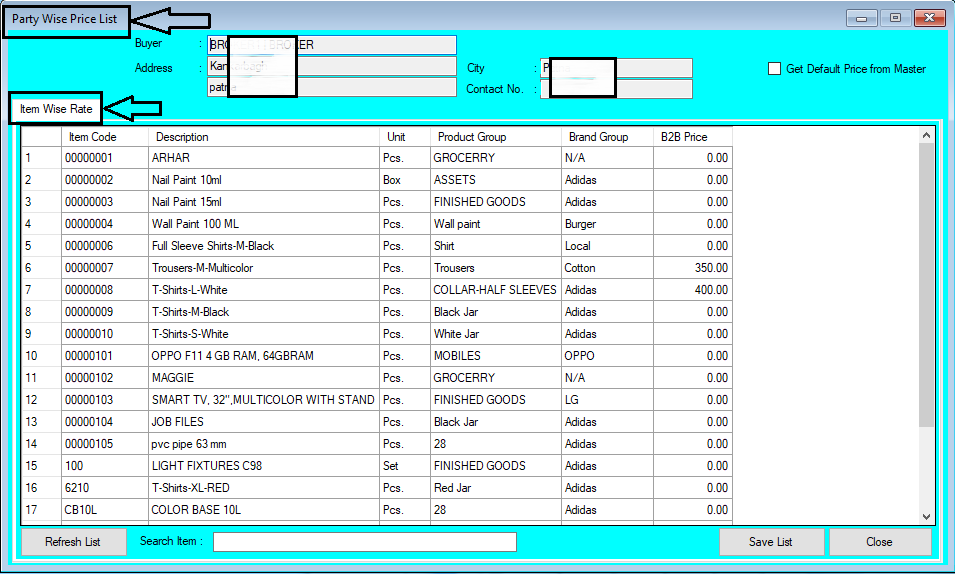
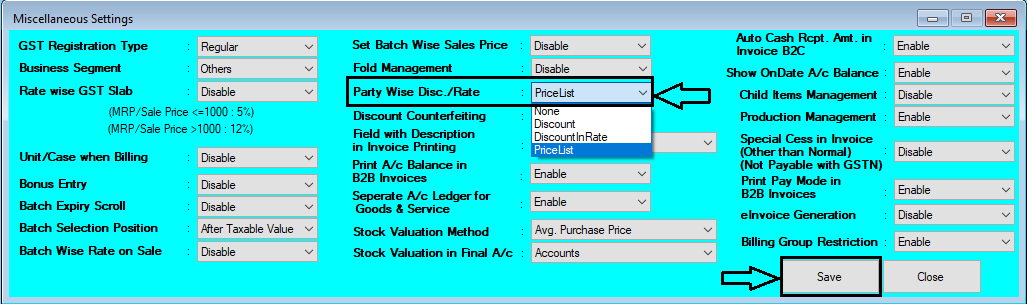
  How to Set Party Wise Price List in Chanakya ERP First of all Go To Tools Menu Open Misc. Settings Go for "Party Wise Discount Rate" Select "Price List" Option Click on "Save"   Logout and Login Software, To Enabled the Changes After Enabling Setting in Misc. Setting Go to "Master" Module Open "Party Wise Price List" Below Image Show the Module will open Like Same . Select Buyer by Pressing "F12" Buyer Details will be Auto filled After Selecting Buyer , Item will be Auto fetched from Item Master Section Your Can Search Item (Item code & Item Name) , from Search Box at Bottom of window Now Set Price of B2B for each Prescribed Item Enter the Price and Click on "Save List" , the Price will be set for that Particular Party on Particular Item Item Master Price Section could be also Fetched By Clicking on "Get Default Price from Master" You can also Refresh the List , By Clicking on "Refresh Li...

Chanakya ERP Update Release 1.1.2.4

Image
 Party Wise Price List Setting 👉 Now in Chanakya ERP Set Party Wise Price List 👉 Party Wise Price list Setting will Help User to Define B2B Sale Price for Defined Item which could be Fetched at the time of B2B Billing/Invoice Multiple Billing Group wise Filter Option in B2C Invoice Report and B2B Invoice Report And Many more Enhancement  For More Query/Support, Call us on +91 8447740155 Thank You !
Sales Order Generation through Mobile App Help Guide

Image
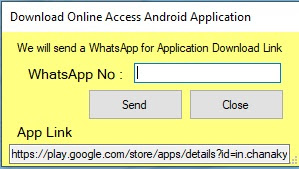
Sales Order Generation through Mobile App of Chanakya ERP Sales Order through Mobile App Salesman can Generate Sales Order through Mobile App Create Online User and Link User as Salesman (If Applicable) Send Mobile App Link on Whatsapp of Salesman through Chanakya Software in a Click Just Enter Whatsapp Number and Click on Send Button Send a "Hi" Message on Same Number and Click on the Link to Download the App. Click on the below Link to download Mobile App                        https://play.google.com/store/apps/details?id=in.chanakyaerp.online After Downloading Mobile App, Create Online User for Mobile Access and you can Link Salesman to respective Online User (If User is Salesman) Click on link to see How you can Create Online User . Enter User Name and Password to Login to Mobile App After Login , You can see the front Panel of Mobile App At Above( Indicated in Below Picture left Side ) You can see that that...