Posts

Showing posts with the label Inventory

Generate Loading/Delivery Sheet Help Guide

Image
How to Generate Loading/Delivery Sheet In Chanakya ERP Generate Loading/Delivery Sheet Click  on  Inventory Menu Click  on  Generate Loading/Delivery Sheet A new window will popped up  Select Invoice Type (B2C/B2B) Selection of Date (Period of date of Invoice) Click on show Invoice All Invoice List will be Displayed Select Invoice By clicking on Check Box Option at beginning of each invoice Right-Click on invoice list to fetch three Option Filter :- Filter Option Provide you to Filtered  the data according to your need Select All :- This Option helps you to Select all invoices in a Click . Deselect All :- This Option allow you to Deselect the selected invoice In Filter option, you will get Column wise Filter Facility , as shown in below image Select Column option with Conditions (Equals or Contains) and Enter the value , which you want to Filter and Click on Apply Button Right-Click to Select all the Invoices , which you want to Generate...
Invoice B2C Vehicle Master Help Guide

Image
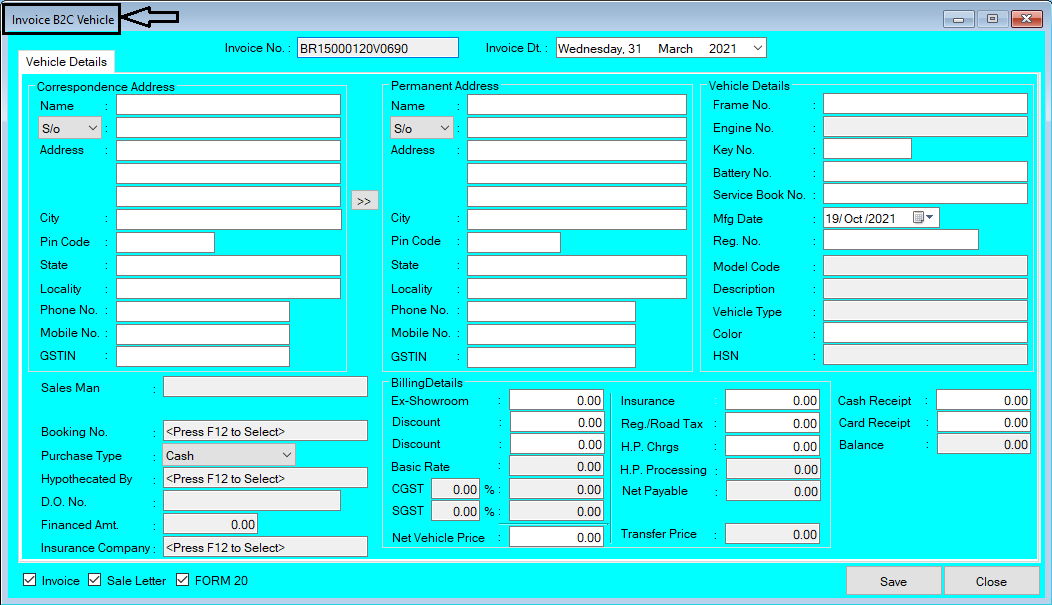
How To Create/Modify/Cancel Invoice B2C Vehicle in Chanakya ERP Create Invoice B2C Vehicle Bill Click  on  Inventory Vehicle Menu Click  on  Invoice B2C Vehicle A new window will popped up  Correspondence Address :- Fill Complete Address of Customer with Proper Mobile/Phone Number   Permanent Address:- If Permanent Address is Same as Correspondence Address then Simply Click on ">>" Key to fetch the details Vehicle Details:- In Vehicle details, You will Find the information of Vehicle  Frame Number:- Press "F12" to Select Frame Number of vehicle i.e., to be sold Engine Number:- Engine Number will be Fetched with Simply Selecting Frame Number. Key Number:- Key Number will be Mentioned (If Needed) Battery Number:- Enter the Battery Number (If Needed) Service Book Number:- Enter Service Book Number (if Required) Mfg. Date:- Enter the Mfg. Date Reg. No.:- Enter Reg. No. Model Code:- Model code will be fetched with frame Number Description:...

Quotation Vehicle Help Guide

Image
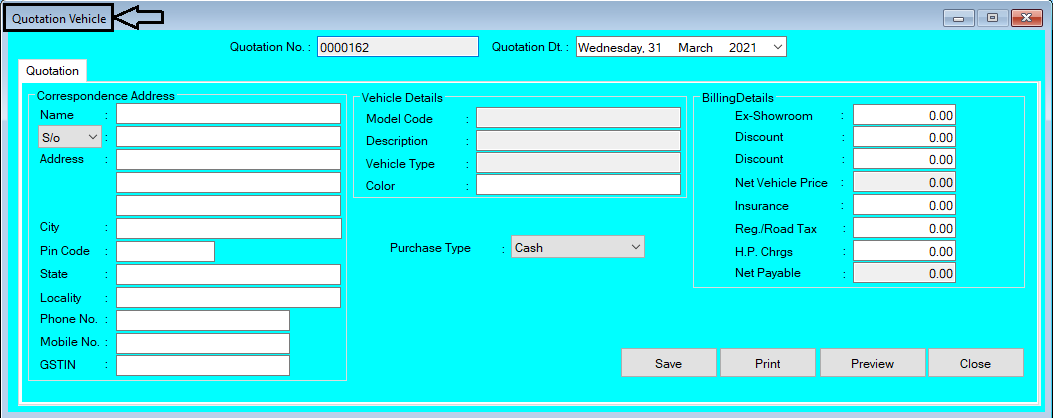
How to Create/Modify/Cancel Quotation of Vehicle Entry in Chanakya ERP Create Quotation Click  on  Inventory Vehicle Menu Click  on Quotation A new window will popped up In Open Window You will find the Correspondence Address of Party/Customers , where you have to take the full details from Party/Customers to fill here in the Address Box, as shown in below image In Next Part you can Fetch the details of Vehicle from its Model Code , Description , Vehicle type , Color and Billing Details Will Auto fetch By Pressing "F12" key on "Model Code" , all Vehicle List will be Opened, Select the Vehicle from List, It's Details will be automatically fetched Here you can Manually Enter the Color and Some Billing details like Discount , Insurance Charge , Reg/Road Tax and H.P Charges , as shown in below image Select Purchase Type "Cash" or "Finance" , as shown in below image Click on "Save" Button to Save the Quotation "Print" ...

Performa Invoice (B2B) Help Guide

Image
How to Create/Modify/Cancel Performa Invoice (B2B) in Chanakya ERP Create Performa Invoice (B2B) Click on  Performa Invoice (B2B)  in  Inventory Menu  to Open Performa Invoice (B2B) option (as shown in below image) Billing Groups: Multiple Billing Group can be selected by Clicking on Drop-Down Menu Invoice Number: Manually and Automatically both can be Managed in Document Number Settings Invoice Date: Invoicing Date is to be Selected , Date at which Invoice is being Generated Invoice Type: It will depend upon Address of Buyer (Inter-State Invoice for outside State Buyers and Intra-State Invoice for within State Buyers) Reverse Charge: By Default "No" will be Selected, You can Select "Yes" by Clicking on Drop-Down Menu A/c Balance: Previous A/c Balance will be displayed here of Particular Buyer's Payment Mode: "Cash" Mode for Cash Payment and "Credit" Mode for Later Payment. When Payment will be done by Buyer then their "P...