Posts

Sales Return B2B Help guide

Image
How to Check Report of Sales Return B2B in Chanakya ERP Sales Return B2B List Open Report Section Click on Sales Return B2B  List By default  All Buyer  will be selected, if you want to see all  Sales Return B2B list  of All Buyer  at one Time Filter  according to  Date-wise (Between Two Date)   as shown in below image Multiple Filter like Invoice Summery, Item Summery, GST Summery Invoice Wise and GST Summery Day Wise with Some Additional details mentioned during Sales Return Click on "Show" Button to view/Generate the Reports according to Filtered data All Reports will be fetched below, where you can Scroll right to view all the columns, as shown in below image For More Query/Support, Feel free to Generate Ticket or Call us on +91 8447740155 Thank You !
Sales Order Generation through Mobile App Help Guide

Image
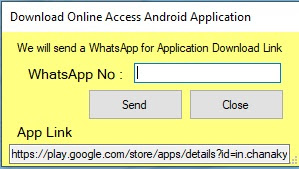
Sales Order Generation through Mobile App of Chanakya ERP Sales Order through Mobile App Salesman can Generate Sales Order through Mobile App Create Online User and Link User as Salesman (If Applicable) Send Mobile App Link on Whatsapp of Salesman through Chanakya Software in a Click Just Enter Whatsapp Number and Click on Send Button Send a "Hi" Message on Same Number and Click on the Link to Download the App. Click on the below Link to download Mobile App                        https://play.google.com/store/apps/details?id=in.chanakyaerp.online After Downloading Mobile App, Create Online User for Mobile Access and you can Link Salesman to respective Online User (If User is Salesman) Click on link to see How you can Create Online User . Enter User Name and Password to Login to Mobile App After Login , You can see the front Panel of Mobile App At Above( Indicated in Below Picture left Side ) You can see that that...

Chanakya ERP Update Release 1.1.2.1

Image
  Now Send SMS Free through Chanakya ERP User Can send SMS Free through Chanakya ERP, with their Sender Name and contact Number And Many Minor Enhancements ... For More Query/Support, Call us on +91 8447740155 Thank You !
Chanakya ERP Update Release 1.1.2.0

Image
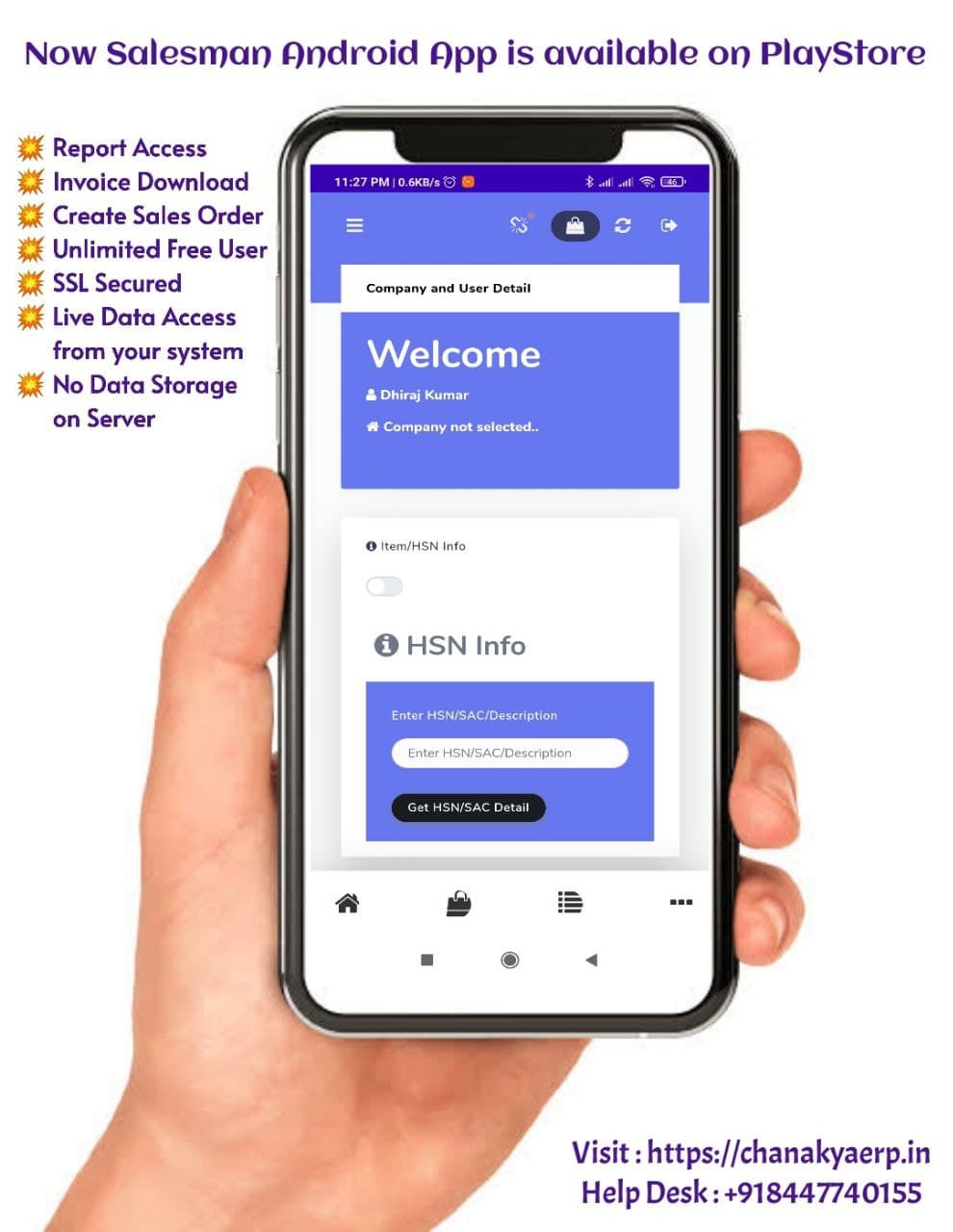
Features Updated in Chanakya ERP Salesman Android App is Now Available on Google Play Store . Sync all our data and Go online, With hassle free Online Ordering Generate Sales Order from Customer Location and Sync Sales Order at your Billing Location and Send Invoices on Whatsapp of Customer, in a single Click. Click on the Link Below to Download ChanakyaERP Online Data Access App.   https://play.google.com/store/apps/details?id=in.chanakyaerp.online You can also Send App link on Whatsapp For More Query/Support, Call us on +91 8447740155 Thank You !

Value Added Service 💥Free💥 ( Whatsapp, SMS & E-mail) Configuration Help Guide

Image
How to Configure Paid SMS, 💥Free 💥 SMS, E-Mail and  💥Free 💥 Whatsapp in Chanakya ERP Go To Tools Menu Click on VAS Setup , Following Window will be open as shown below There are Three Value Added service for Configuration, SMS , E-Mail & Whatsapp , First we will see the Setting of SMS configuration SMS Configuration:- For SMS Configuration you have to first of all follow these steps one by one . Register on DLT (Distributed Ledger Technology) Platform , Those who provide SMS Features After Successful Registration, Register for Sender ID (Which Should be off 6 Digit,   (following Company name in short) , through which the Message will be sent to Customer After Registration of Sender ID , the Registration of Template is done      (Means type of Message Format) After Verification of Template from Government side (which might Take 24 to 48 HRS. ), That Template is verified and matched on SMS server Company After that User ID and Password is generated ...

Chanakya ERP Update Release 1.1.1.9

Image
𝗡𝗼𝘄 𝗗𝗼𝘄𝗻𝗹𝗼𝗮𝗱 𝗮𝗻𝗱 𝗥𝗲𝗰𝗼𝗻𝗰𝗶𝗹𝗲 𝗚𝗦𝗧𝗥𝟮𝗕 𝗶𝗻 𝗮 𝗰𝗹𝗶𝗰𝗸 𝘄𝗶𝘁𝗵𝗶𝗻 𝘀𝗲𝗰𝗼𝗻𝗱𝘀  For More Query/Support, Feel free to Generate Ticket or Call us on +91 8447740155 Thank You !
Chanakya ERP Update Release 1.1.1.8

Security Updates regarding Cloud and Network Connectivity Technical Upgradation Regarding Cloud and Network Connectivity for Whatsapp Features  And Many more Improvements... For More Query/Support, Feel free to Generate Ticket or Call us on +91 8447740155 Thank You !

Chanakya ERP Update Release 1.1.1.7

Image
  Chanakya ERP Is Now Enabled with Whatsapp Features Now Send Your Invoices (B2B/B2C) Through Whatsapp, PDF Format will be Directly Sent on Customers Whatsapp Number, In a Single Click Send Ledger, All Accounting Vouchers and Other Module (With Preview Option) And Many Minor Enhancements ... For More Query/Support, Call us on +91 8447740155 Thank You !

Generate Loading/Delivery Sheet Help Guide

Image
How to Generate Loading/Delivery Sheet In Chanakya ERP Generate Loading/Delivery Sheet Click  on  Inventory Menu Click  on  Generate Loading/Delivery Sheet A new window will popped up  Select Invoice Type (B2C/B2B) Selection of Date (Period of date of Invoice) Click on show Invoice All Invoice List will be Displayed Select Invoice By clicking on Check Box Option at beginning of each invoice Right-Click on invoice list to fetch three Option Filter :- Filter Option Provide you to Filtered  the data according to your need Select All :- This Option helps you to Select all invoices in a Click . Deselect All :- This Option allow you to Deselect the selected invoice In Filter option, you will get Column wise Filter Facility , as shown in below image Select Column option with Conditions (Equals or Contains) and Enter the value , which you want to Filter and Click on Apply Button Right-Click to Select all the Invoices , which you want to Generate...

Chanakya ERP Update Release 1.1.1.6

Image
UPI Payment QR code on Invoice Updated in Chanakya ERP Now print UPI Payment QR Code on Invoice Go to Financial/User option and Click on company Info to add your UPI ID and Display Name . And Many Minor Enhancements ... For More Query/Support, Call us on +91 8447740155 Thank You !

Chanakya ERP Update Release 1.1.1.5

Image
  List Of Features Updated in Chanakya ERP 👉 Updates Regarding Cloud  Security Service, Now Cloud Data Storage has became More Safe, Secure and Flexible to Store Data 👉 Now In Chanakya ERP User can Generate Loading/Delivery Sheet , Both B2C and B2B Invoice  Delivery Sheet can be Fetched in Two Modes (Consolidated Summary &  Consolidated  with Party/Invoice wise Summary) 👉 Updates Regarding  Some Minor Modification in Chanakya ERP (High Speed, More Reliable and Many More...) For More Query/Support, Call us on +91 8447740155 Thank You !

Chanakya ERP Update Release 1.1.1.4

Image
Some Features which has been implemented in New Version of Chanakya ERP 👉     While Generating GSTR1, You will find the Total (Sum) Column of all the Reports at bottom of same screen, which will Fetched after Clicking on "Refresh Button" 👉   Now you can find the "New Splash Screen" (When You first time open Software) of Your Own Software, "Chanakya ERP" 👉  Now Easily Check the GSTIN details of Client/Customers either Active/Inactive on GST Portal, while Making Invoice B2B/B2C 👉  Now ChanakyaERP has a cloud Enable Features to Store Data online on cloud (Both Offline and Online Data storage can be processed) Thank You!

Chanakya ERP Update Release 1.1.1.3

Image
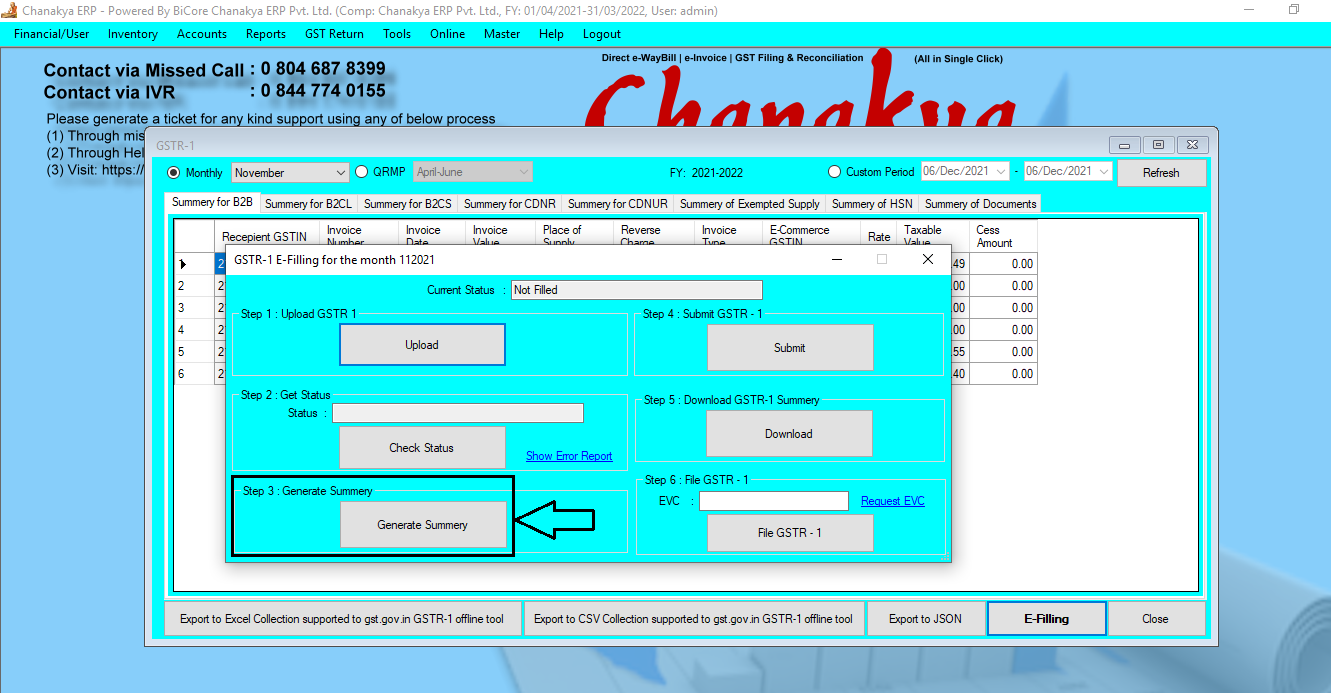
  GSTR1 Update According to GST Norms I n GSTR1 one Step has increased during filling i.e., "Generate Summary" which has been implemented in Chanakya ERP  After "Get Status", now Click on "Generate Summary" option to proceed further, as shown in below image For Filing step of GSTR1 you can visit to particular Blog "GSTR1 Filling Help Guide" Please Feel Free to Contact us on +91 8447740155  for any support/ Assistance Regarding GST Filing Thank You !

Chanakya ERP Update Release 1.1.1.2

Image
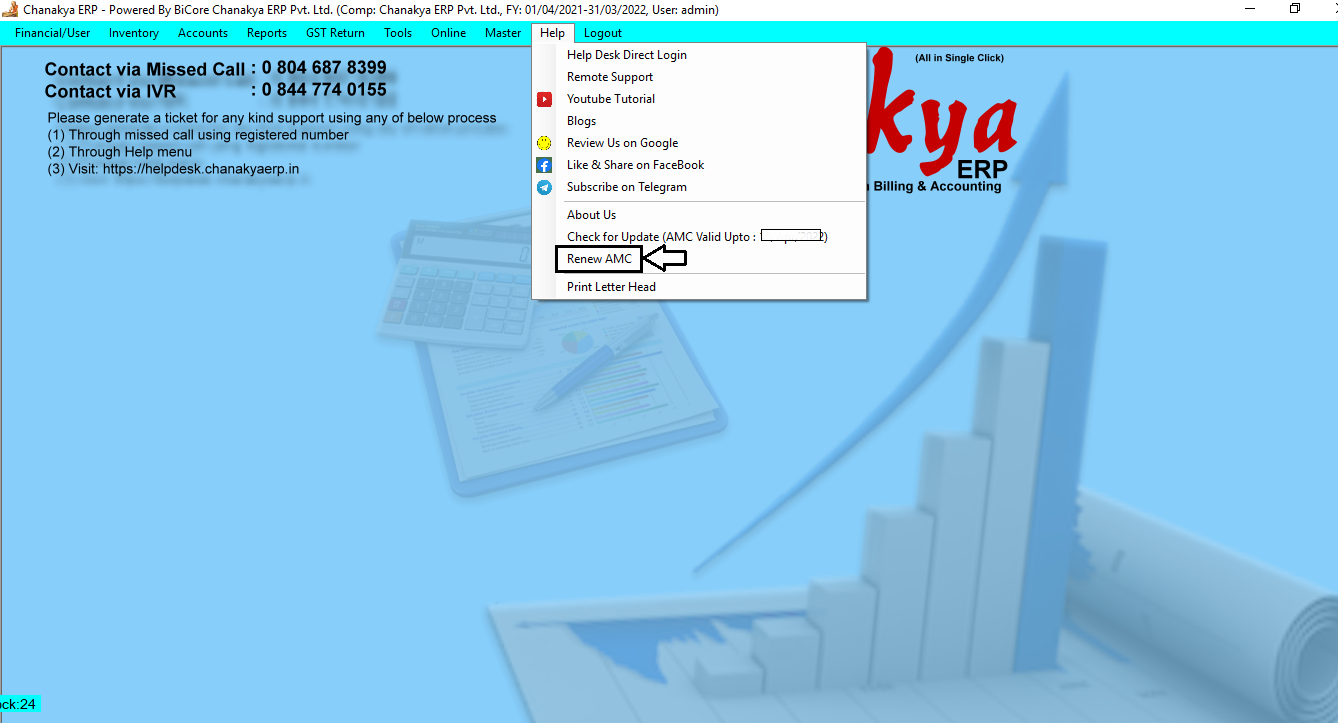
  Online Payment Module Implemented in Chanakya ERP Now Easily Renew AMC Through Online Payment by Following these Few Steps STEP 1:- Click on Help Menu to see the Module of Renew AMC, Click on Renew AMC STEP 2:- Click on Renew Now, A Pop-up will open which will show you the benefits of AMC Renewal and your Due date STEP 3:-  You will find the AMC Expiry date with Number of Years Renewal, According to that Pricing will Fetch, Click on Generate Order and Pay Online. STEP 4:-  Click on the Confirmation Message, If you want to Proceed for Transaction then Click on "Yes", If Not then "No" STEP 5:- Now you can see Order Information, where Order No, Order date, Order Value and Payment Link will fetch, You can Copy the Payment link and Paste to Your Desired Browser or directly Click on "Pay Now" button to Open the Link in Default Browser. NOTE:- You will get the Payment Link Via Email and SMS, where You Can Pay through Mobile also while Clicking on the Link. ...