Posts

Chanakya ERP Update Release 1.1.4.7

Image
  Updates Released in New Version of Chanakya  ERP (1.1.4.7) Highlights Additional Battery & Additional Details can be entered in Vehicle Invoice specially for e-vehicle GST Payment Set-Off can be cancelled (if required) Option enabled to apply discount to all items of invoices at once. Please take a look on marked section in Sales Order B2B Option Screenshot shown below. Additional Battery & Additional Details can be entered in Vehicle Invoice specially for e-vehicle Press F12 on Marked box for enter additional details as showin in above image. Option enabled to apply discount to all items of invoices at once. Press Ctrl + F8 on any item (Invoice B2C or B2B) to activate discount override option as shown in below image And Many More Minor Updates and Enhancement   For More Query/Support, Call us on +91 8447740155 Thank You !

Chanakya ERP Update Release 1.1.4.6

Image
  Updates Released in New Version of Chanakya  ERP (1.1.4.6) Highlights Now Terms & Conditions can be saved with Sales Order B2B. Sales Order B2B can be printed. Sales Order B2B can be sent through Email and WhatsApp directly as Invoices. Reports of Quotation B2B has been Released Pending Order/Billed Order filtration has been added Sales Order B2B List Report Please take a look on marked section in Sales Order B2B Option Screenshot shown below. And Many More Minor Updates and Enhancement   For More Query/Support, Call us on +91 8447740155 Thank You !
Chanakya ERP Update Release 1.1.4.5

Image
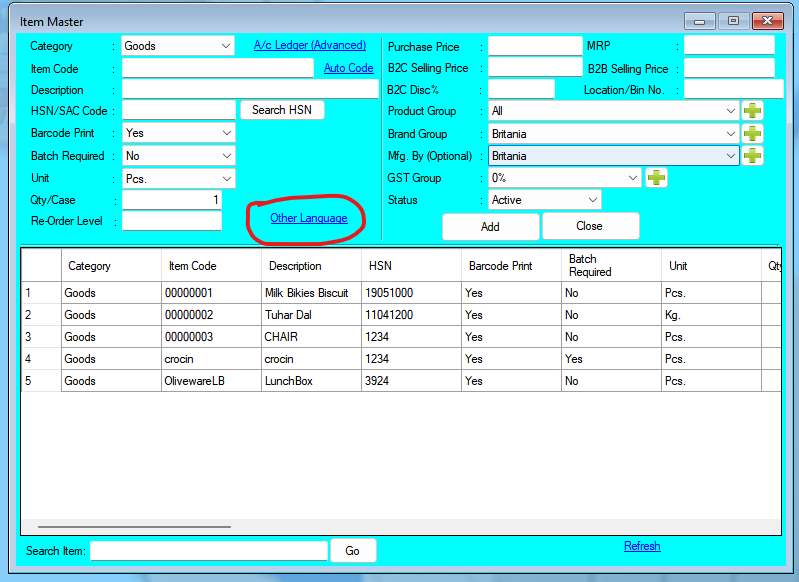
  Updates Released in New Version of Chanakya  ERP (1.1.4.5) Highlights Now Item Description on Invoice can be printed in your local language using Unicode Features in Chanakya ERP. Enter item Description in your local language like shown in below images. After Updating Description in Item Master. Chanakya ERP will automatically print item description in Invoice in your local language as shown in below image. Note: Please make sure Unicode Support for Item has been enabled in Misc. Settings option as shown below to use this feature. And Many More Minor Updates and Enhancement   For More Query/Support, Call us on +91 8447740155 Thank You !
Chanakya ERP Update Release 1.1.4.4

Image
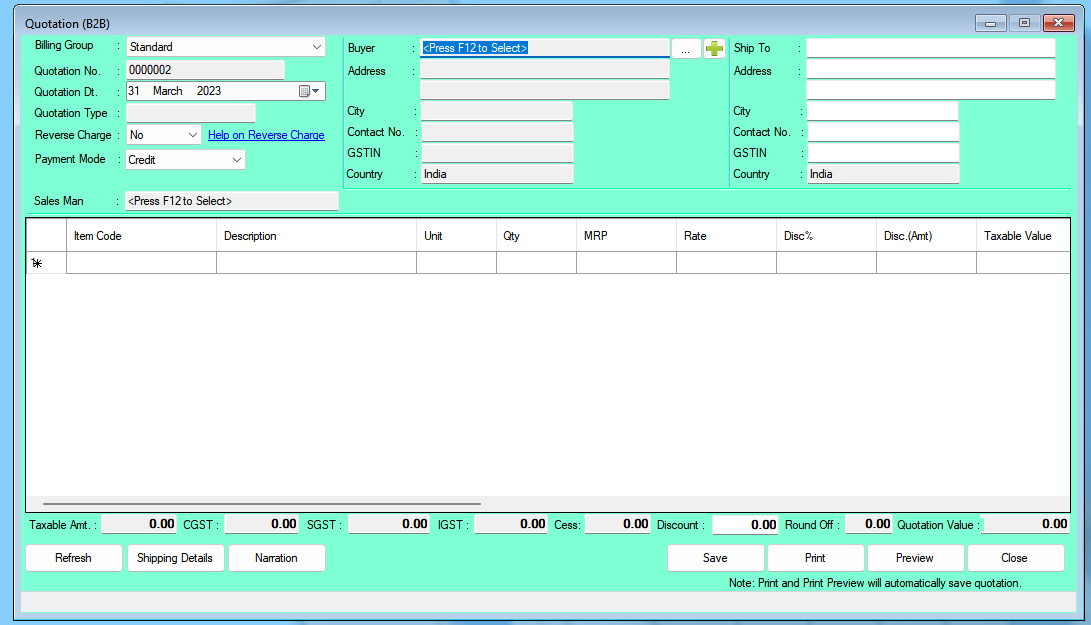
  Updates Released in New Version of Chanakya  ERP (1.1.4.4) Option for Generate Quotation of B2B Party. Sales Order can be generated using Quotation. Proforma Invoice can be generated using Quotation or Sales Order. Invoice B2B can be generated using Quotation or Proforma Invoice.               For More Query/Support, Call us on +91 8447740155 Thank You !

Chanakya ERP Update Release 1.1.4.3

Image
  Updates Released in New Version of Chanakya  ERP (1.1.4.3) Now authorized signature can be printed in all formats of Proforma Invoice, Invoice B2C & Invoice B2B To set signature, Use Company Profile option from Financial/User Menu as shown below.   For More Query/Support, Call us on +91 8447740155 Thank You !

Chanakya ERP Update Release 1.1.4.2

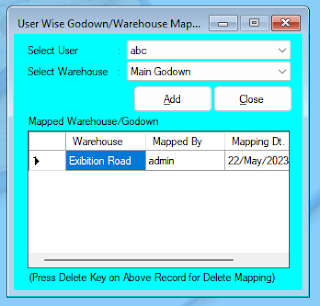
  Updates Released in New Version of Chanakya  ERP (1.1.4.2) Now User Wise Godown Restriction can be done in Chanakya ERP like if you want to restrict User A can generate Invoice from Godown/WareHouse ABC Road only then this can be done through settings. To know the details how to activate and configure this settings Click Here             For More Query/Support, Call us on +91 8447740155 Thank You !

User Wise Godown/Warehouse Mapping Help Guide

Image
  How To Manage User Wise Godown Mapping in Chanakya ERP Go to Tools Menu You will find an option of  "User wise Godown Mapping" (you can enable this option though misc menu available in Tool Menu by enabling Billing Group/Godown Restriction) Open  "User Wise Godown Mapping" Select " User" Select "Godown/Warehouse"  which you want to allow Permission to Selected user to Work in. Click  on  "Add"  Button to add the Mapping  If You want to Delete any Save Record, then Simply Press Delete Key to Delete that Particular Record For More Query/Support, Feel free to Generate Ticket or Call us on +91 8447740155 Thank you !

Chanakya ERP Update Release 1.1.4.1

Updates Released in New Version of Chanakya  ERP (1.1.4.1) As we all know that, e-Invoicing aggregate turnover limit decreased from 10 Crore to 5 Crore w.e.f. August 01, 2023.  As usual, We always keep Chanakya ERP ready for upcoming compliance. We have increased the server capacity to handle extra load which will help us maintain ZERO Downtime of e-invoice  and benefits our clients to become stress free. e-Invoice for GST Credit Note & Debit Note has been enabled And Many More Minor Updates and Improvement including compatibility with Win 11 New releases.             For More Query/Support, Call us on +91 8447740155 Thank You !

Chanakya ERP Update Release 1.1.4.0

Image
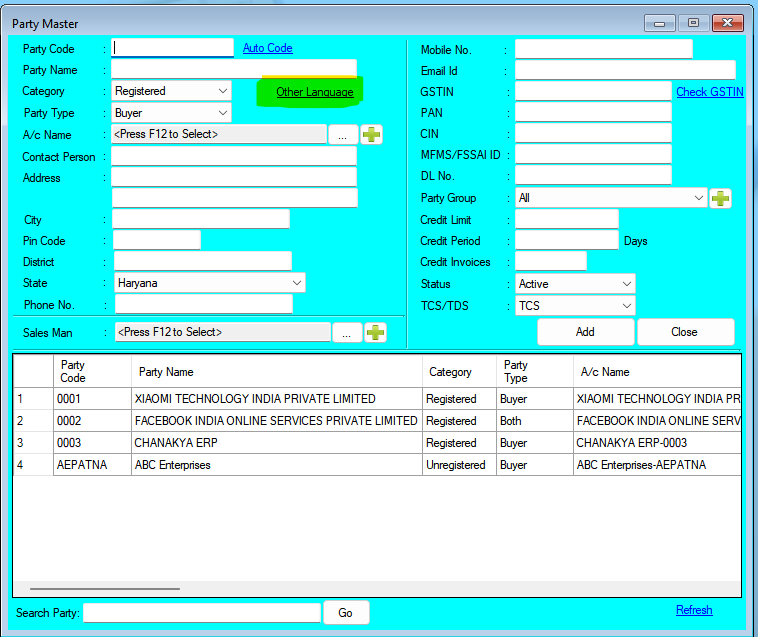
Updates Released in New Version of Chanakya  ERP (1.1.4.0) Highlights Now Party (Buyer) Details on Invoice can be printed in your local language using Unicode Features in Chanakya ERP. How to use this feature. Enter Party Details in your local language like shown in below images.   After Updating Details in Party Master. Chanakya ERP will automatically print party details in Invoice in your local language as shown in below image. And Many More Minor Updates and Enhancement   For More Query/Support, Call us on +91 8447740155 Thank You !

Chanakya ERP Update Release 1.1.3.9

Image
  Updates Released in New Version of Chanakya  ERP Highlights TCS on Sales implementation at the time or Invoice or Receipt (On User's Choice) Two Extra Column Added in Quotation for Vehicle TCS on Sales implementation at the time or Invoice or Receipt (On User's Choice) Who is required to collect TCS on sale of goods?  The seller (Whose ATO is above 10Cr.) of the goods who receives any amount as consideration for the sale of any goods of the value exceeding INR 50 Lakhs  is required to collect TCS on the sale of goods under section 206C(1H) of the Income Tax Act from the buyer. How to Activate and Implement TCS On Sales of Goods Activate TCS through Misc. Settings Using Tools Menu as shown in below image. (Choose Invoice, if you want to implement TCS during invoice and Choose Receipt, if you want to implement TCS after receipt.) After Activation, Set TCS Percent through Applicable TCS Settings Using Tools Menu as shown in below image. If you have configured TCS on I...

Chanakya ERP Update Release 1.1.3.8

Image
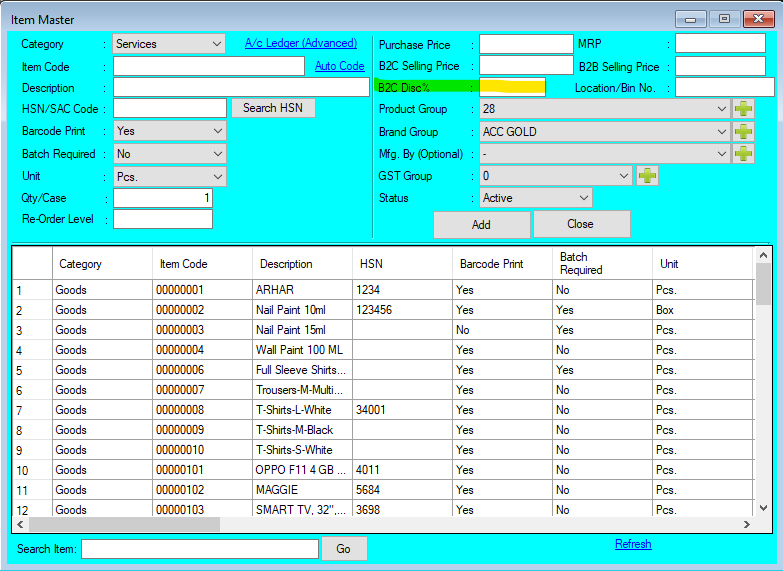
  Updates Released in New Version of Chanakya  ERP In Item Master Now you will find a New Section, "B2C Discount %" , Which will be useful for Retailers to set Discount (%) at the Time of Adding Item Master At the Time of "Purchase Bill Entry" , If you are "Modifying your MRP Price" then one Pop-Up will be enable to set the Pricing for B2C and B2B Price with B2C Discount in % And Many More Minor Updates and Enhancement   For More Query/Support, Call us on +91 8447740155 Thank You !
Multi Receipt Mode in Invoice B2C Help Guide

Image
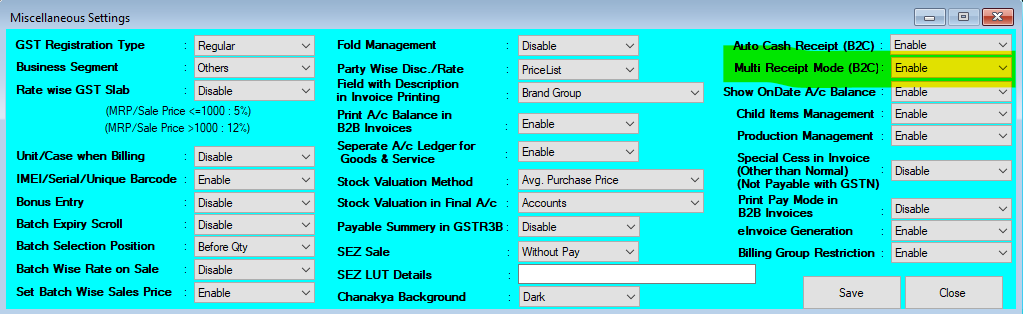
How to Enable Multi Receipt Mode in Invoice B2C in Chanakya ERP Go to "Tools" Menu Click on "Misc. Settings" Enable "Multi Receipt Mode (B2C)" Click on "Save" Button Logout and Login Again in Software to Implement those Settings Click on "Tools" Menu Go to option "Multi Receipt Mode Settings (Invoice B2C)" Create Mode of Payment (e.g., Google Pay, Phone Pay, Paytm, Swipe Machine, etc.) Select the "Settlement A/c" through Accounting Group (e.g., Bank Account, Current Assets) Click on "Add" Button All your Mode will be added below Go to "Inventory" Menu Click on "Invoice B2C" Make any Invoice B2C, and Click on Save , Print or Preview Button "Receipt Mode" will open in Pop-Up Window Enter the Amount in which Mode you have Received   Click on Ok button Note:- You can also Check Refund Balance or Due Balance on the Same Window Now you don't have to Calculate the Remainin...

Chanakya ERP Update Release 1.1.3.7

Image
  Updates Released in New Version of Chanakya  ERP   " Multi Receipt Payment Mode " in Invoice B2C has been Enabled. Now You can Create Multiple Receipt Payment Mode in Tools Menu after Enabling it from Misc. Settings.   Enable it From Misc. Settings , as shown in below image. After Enabling , You can Find the Option of "Multi Receipt Mode Configuration for Invoice B2C" in Tools Menu , Where You can Manage all Receipt Mode, as  Shown in Below Image Now you can find this Option Enabled While Making Invoice B2C ,as Shown in Below Image For More Query/Support, Call us on +91 8447740155 Thank You !
Chanakya ERP Update Release 1.1.3.6

Image
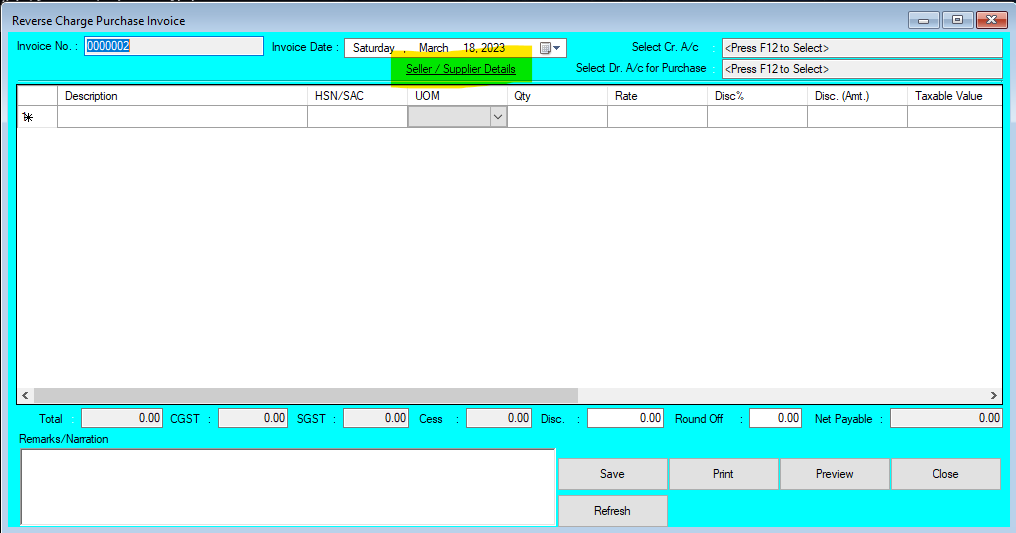
  Updates Released in New Version of Chanakya  ERP 👉  Multiple Filter Option Enable In Item Ledger Report Section Like Brand and         Product Group Wise Filter 👉 Seller/Supplier Details Entry in " RCM Purchase Invoice" as shown in below              image 👉 In Standard Vouchers Entry , Now you can "Copy Vouchers" by Pressing               "F3" 👉 Now you can " Check Closing Balance" in Ledger Section at every                          Transaction Day wise. For More Query/Support, Call us on +91 8447740155 Thank You !

Chanakya ERP Update Release 1.1.3.5

  Updates Released in New Version of Chanakya  ERP 👉  Important compatibility update for Win 11 and performance improvement. For More Query/Support, Call us on +91 8447740155 Thank You !
Chanakya ERP Update Release 1.1.3.4

Image
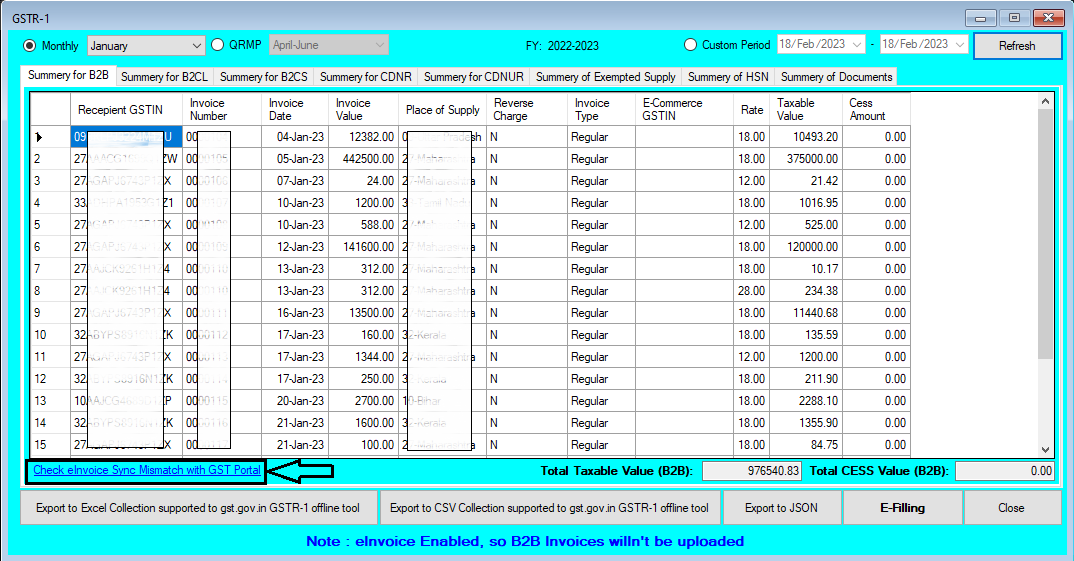
  Updates Released in New Version of Chanakya ERP 👉 E-Invoice Syncing Mismatch Vs GST Portal , Now you can Check all E-Invoices which has not been Sync on GST Portal due to Portal late Response 👉 Now Chanakya ERP is in new Avatar, You can Select for Dark Mode and Lite Mode for your Home Screen  (You can Find the Setting in Tools Menu, Misc. Settings) And Many more Enhancement For More Query/Support, Call us on +91 8447740155 Thank You !

Chanakya ERP Update Release 1.1.3.3

Image
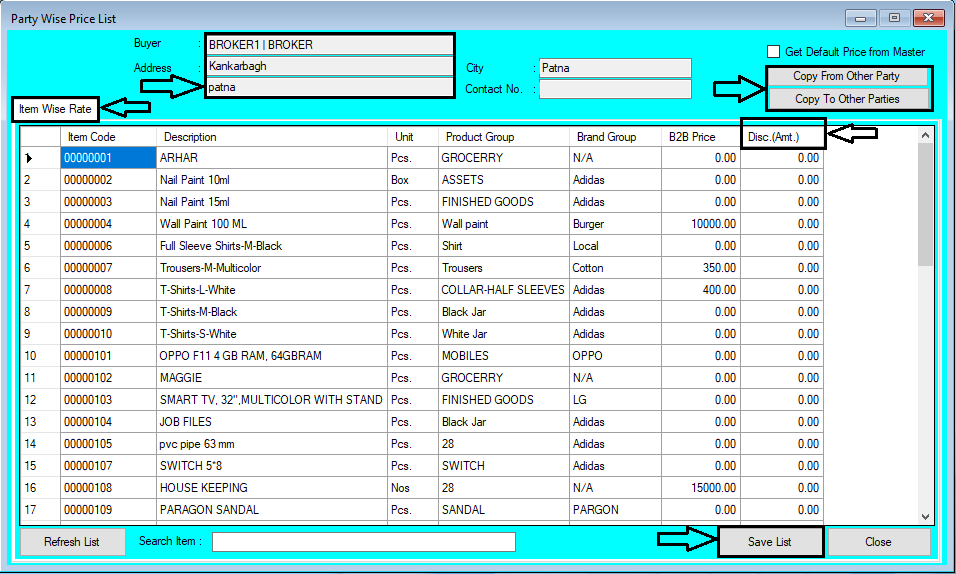
  Updates Released in New Version of Chanakya ERP 👉 All Vouchers List Report has been Updated 👉 Help Desk Mobile Application Released, Now you can Generate a Support Ticket from Chanakya ERP Mobile Application, You can find the Download Link Below  👇 https://play.google.com/store/apps/details?id=in.chanakyaerp.helpdesk 👉 Login with your License Id and License Password to Access the Mobile Application (Which has been Sent to Your Mail Id at the time of Software Purchase) 👉  Party wise Price List with Unit Discount has been Updated in which you can Define Discount According to Party wise, You can also Copy the Same Discount Rate for other Party by Clicking on "Copy to" and "Copy From" Option And Many more Enhancement For More Query/Support, Call us on +91 8447740155 Thank You !
Chanakya ERP Update Release 1.1.3.2

Image
                Updates Released in New Version of Chanakya ERP 👉 " Money Receipt B2C in Vehicle" Segment has been Enabled 👉 " Supply to SEZ Unit" has been Enabled, You can enabled from Miscellaneous Setting       👉 And Many more Enhancement For More Query/Support, Call us on +91 8447740155 Thank You !
Serial/IMEI/Barcode Number Generation Help Guide

Image
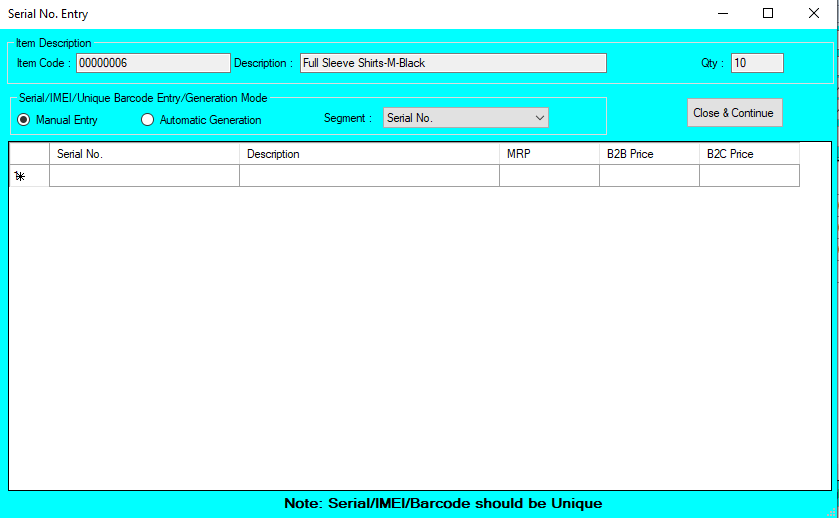
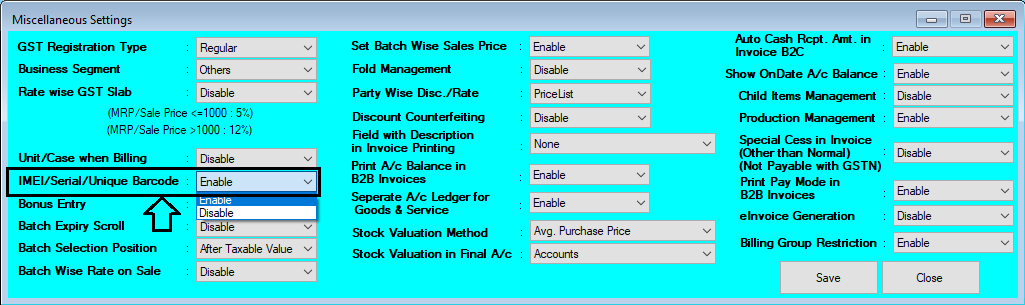
How to Generate Serial/IMEI/Barcode Number in Chanakya ERP First You have To Enable the Settings from "Tool Menu" Go to "Misc. Settings" Go for "IMEI/Serial/Unique Barcode" Option  Select "Enable"   Click on Save Button And Re-login your Software to Enable those Settings Go to "Inventory" Menu Open "Purchase Window" Select the Item for Purchasing and Enter the Quantity Press "F12" on Quantity Column to Open "Serial No. Entry" Column as Shown Below in Image Select the Segment You Want to Generate (Serial/IMEI/Barcode) You can Find Two way to Generate Serial/IMEI/Barcode Number Manual Entry defines you to Enter Manual Barcode/Serial/IMEI Number in Below Column Automatic Generation will Generate Barcode/Serial/IMEI number Automatic , for Each Quantity you are Purchasing By Clicking on Automatic Generation , Barcode/Serial/IMEI Number will be Auto Generated   Barcode/Serial/IMEI Will be arranged in S...

Chanakya ERP Update Release 1.1.2.9 - 1.1.3.1

Image
E-Invoice is Now Enabled For Vehicle Segment in Chanakya ERP 👉 Now Chanakya ERP is Enabled with E-Invoice Section in Vehicle Module 👉 E-Invoice in Sales Return is also Enabled (B2B and B2C Invoice) 👉 Many More Technical Updates has been Released Regarding Windows Compatibility For More Query/Support, Call us on +91 8447740155 Thank You !
Chanakya ERP Update Release 1.1.2.6 - 1.1.2.8

Image
Serial Number/Barcode/IMEI Number Module Updated in Chanakya ERP 👉 Now Chanakya ERP is Enabled with Serial/Barcode/IMEI Number  👉 Unique Number could be Allocated while Making Purchase Bill 👉 While Invoice B2C/B2B , Scan the Barcode/Serial/IMEI Number 👉 And Many More Updates is in Queue, Stay Tuned For More Query/Support, Call us on +91 8447740155 Thank You !
Chanakya ERP Update Release 1.1.2.5

Image
  Updates Released in New Version of Chanakya ERP 👉 In Purchase order New Printing Format has been Enabled, in which you will Find All details with Additional Terms and Conditions 👉 Import Product And Brand Group Section Enabled 👉 And Many more Enhancement For More Query/Support, Call us on +91 8447740155 Thank You !  

Bulk cancellation/Adjustment B2C Invoice Help Guide

Image
  How to Cancel/Adjust Bulk Invoice B2C in Chanakya ERP Go to "Inventory Module" Click on "Bulk cancellation/Adjustment Invoice B2C" Select "Billing Group" You can Filter "Date Wise" "Check Box" Multiple Selection Option to Select the Invoice. Click on "Cancel Invoice Selected" to Cancel all Selected Bill in a Single Click After Clicking on "Cancel Invoice (Selected)" , One Pop-up Will open of "Bulk Cancellation Confirmation" No. of Invoices Selected to delete Release Invoice Serial No. "Yes" or "No" "Captcha" Confirmation "Login Password" Required for Final Submission Click on "Start Cancellation" Cancelled Successfully Message will be displayed with No. of Invoices Cancelled, as Shown in Image Below. For More Query/Support, Call us on +91 8447740155 Thank You !
Party Wise Price List Setting Help guide

Image
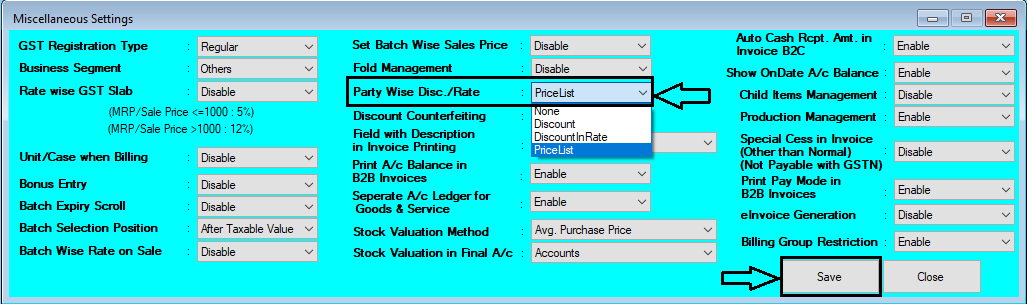
  How to Set Party Wise Price List in Chanakya ERP First of all Go To Tools Menu Open Misc. Settings Go for "Party Wise Discount Rate" Select "Price List" Option Click on "Save"   Logout and Login Software, To Enabled the Changes After Enabling Setting in Misc. Setting Go to "Master" Module Open "Party Wise Price List" Below Image Show the Module will open Like Same . Select Buyer by Pressing "F12" Buyer Details will be Auto filled After Selecting Buyer , Item will be Auto fetched from Item Master Section Your Can Search Item (Item code & Item Name) , from Search Box at Bottom of window Now Set Price of B2B for each Prescribed Item Enter the Price and Click on "Save List" , the Price will be set for that Particular Party on Particular Item Item Master Price Section could be also Fetched By Clicking on "Get Default Price from Master" You can also Refresh the List , By Clicking on "Refresh Li...